Introduction
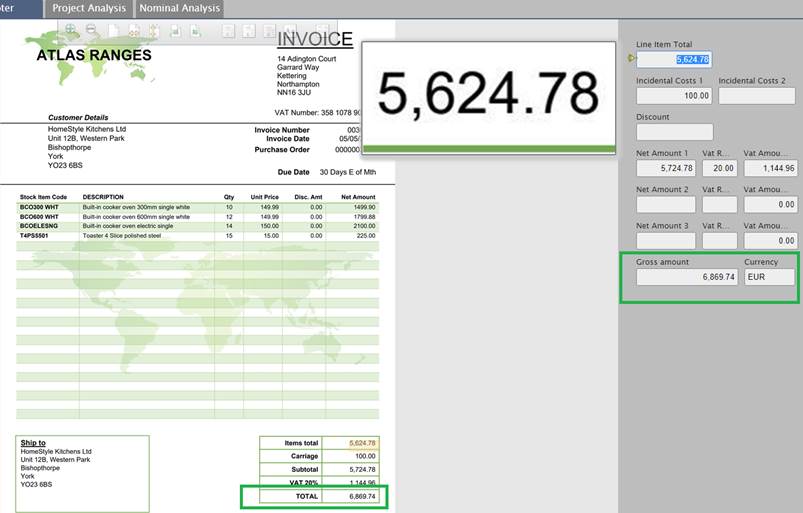
Spindle Purchase Invoice Recognition can be configured to display a currency fullback option if certain criteria are not met which result in the currency field being left empty or populated incorrectly.
Rules In Web Verify
a. If the currency is found on document, this can be either the currency symbol i.e. $ £ € OR an ISO Currency Code i.e. GBP, USD, EUR
In this case the Currency Code does not require any approval from the end user and clearing flag is not applied.
b. If the currency (currency symbol or ISO Currency Code) is NOT found on the document AND there is a CurrencyFallback (which is a predefined ISO Currency Code)
The system will use the Currency Code used for CurrencyFallback and there is no required approval from the end user and the clearing flag is not applied to the currency field
c. If the currency is not found on the document AND there is no CurrencyFallback but there is a ISOCurrencyCode for the supplier in the Master_Creditor.csv
The system will use the currency from the Master_Creditor.csv (ISOCurrencyCode column) and there is no requirement for any approval from the end user and the clearing flag is not applied to the currency field
d. If the currency is not found on the document AND there is no fall-back currency AND no currency in the Master_Creditor.csv for the supplier
Then the system will search for the Country in the Master_Creditor.csv file and search for the default currency for the country in question and it will use that value obtained as the currency AND require end user approval with the clearing flag applied to the currency field
If the points in 1a to 1d are not met then Currency field is not populated (red flag) and will require the user to input the currency manually, until one of the above four rules are met.
Configuration
How to configure the CurrencyFallback option:
1. Access the server where SDM Server Administration is installed
2 Navigate to the following location (C:\ProgramData\Draycir\Recognition\Cloud Sync\CSV Files\Custom)
3. Open up the following file Tenant_Configuration_Options.csv
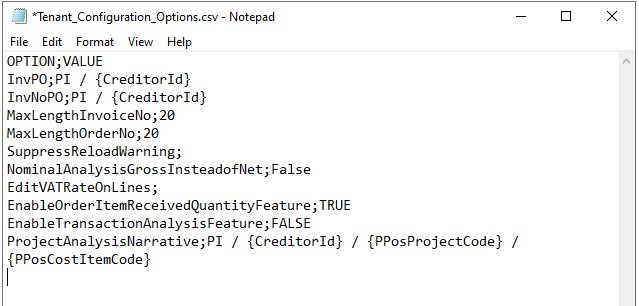
Add the desired fallback ISO currency code as follows:
“CurrencyFallback;{ISOCurrencyCode}” – where {ISOCurrencyCode} should be replaced with the appropriate currency code
Link: https://www.iban.com/currency-codes (if you need to configure other defaulted Currencies)
E.g. the example we are using is “EUR”
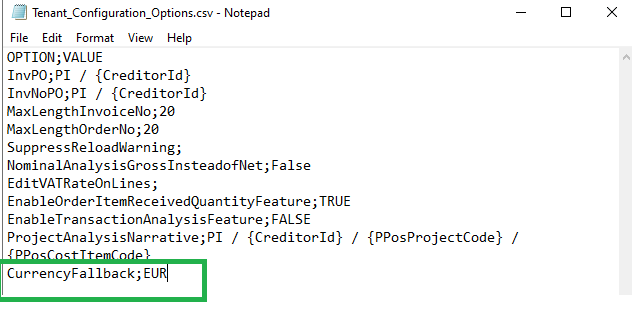
Save the “Tenant_Configuration_Options.csv” file
**Please note any changes made will require the “Drayir Cloud Synchronisation Agent” to be restarted**
Any changes will take upto 15mins to be reflected within Web Verify

If the document has been sent for verification already, then the document can be either be re-processed via the Document portal or the appropriate currency code can be entered manually. Any new documents that are uploaded the CurrencyFallback option will automatically take affect.
| Related Product | SPIR |
| Ref Number | KBA-11-02-014 |
| Document Date | 17-06-2021 |
| Original Author | Vijay Mistry |
| Document Version | v1.1 |
| Last updated | 17-06-2021 |
| Update Author | Vijay Mistry |
Was this article helpful?
That’s Great!
Thank you for your feedback
Sorry! We couldn't be helpful
Thank you for your feedback
Feedback sent
We appreciate your effort and will try to fix the article