Introduction
Currently the user will upload an Invoice and verfiy/clear some on the pieces of Information, this process is put in place in order for the client to get familiar with the process of capturing/posting Purchase Invoices in Spindle Purchase Invoice Recognition.
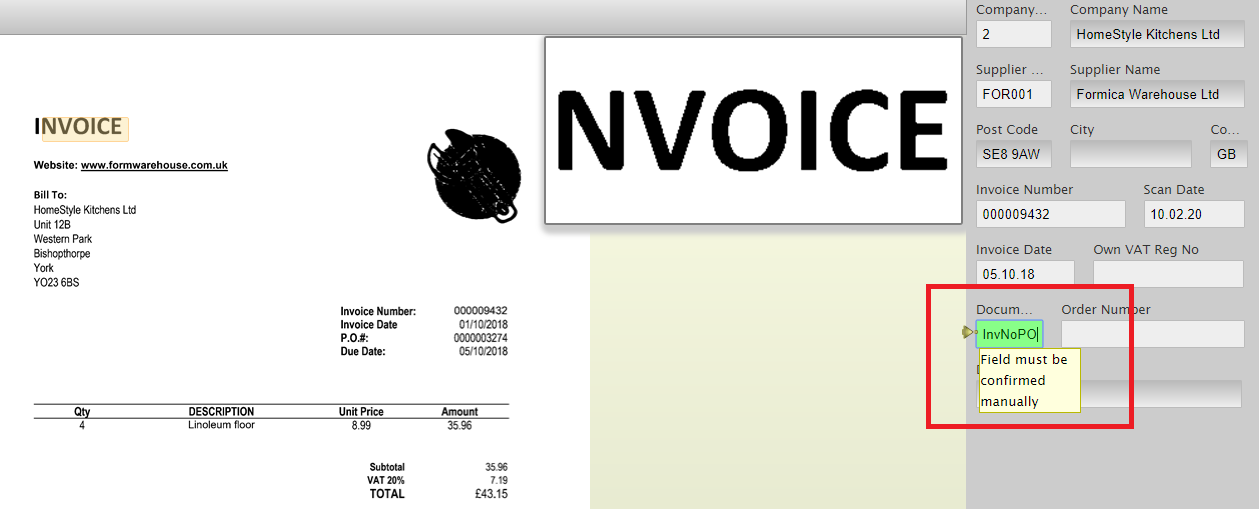
e.g. the Document type in this case may need to be clarified (InvNoPO) as it is highlighted in green. This is known as "verification"
Fig1
To remove clearing for Document Type please raise a ticket with R&D as this change will need to be made on the Cloud Server
Reason
After a period of time using Spindle Purchase Invoice Recognition the client will be in a position to turn off verification as they confident of the Supplier Invoices being received are correct and not requiring human intervention before posting to Sage 200
Applies to:
SDM V7 & V8 (SPIR Module)
Resolution
To remove clearing from the Nominal Analysis Table please see the steps below:
This will require access to the Server whereby the agents are installed in order for a change to the configuration files.
Please discuss the changes to the verification with a Draycir consultant before attempting to make changes to a client site
1. Navigate to the following location on the server:
(C:\ProgramData\Draycir\Recognition\Cloud Sync\CSV Files\Custom)
2. Open the Creditor_Options.csv file within Notepad (Right click on .csv file>Open with>Notepad)
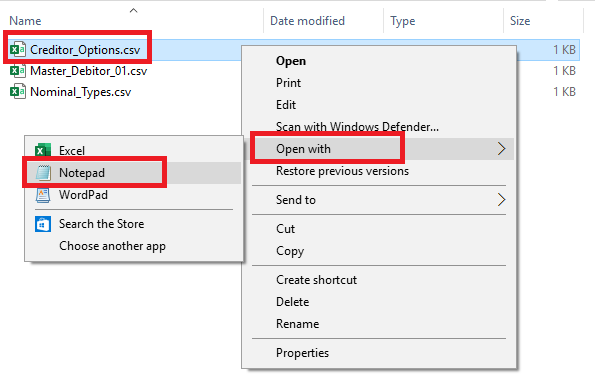
3. The Creditor_Options.csv file will be displayed in the same format shown below:
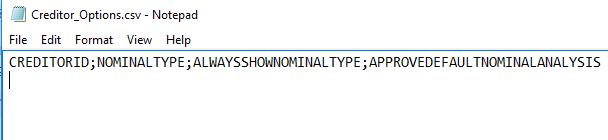
4. For suppliers that want to skip the clearing step on the Nominal Analysis table; add the supplier code under the CREDITORID column and set APPROVEDEFAULTNOMINALANALYSIS to FALSE as shown below.

It is important to note that the 3 semicolons must be present as they denote column headers.
5. Once the changes have been made, proceed to "save the change" to the file
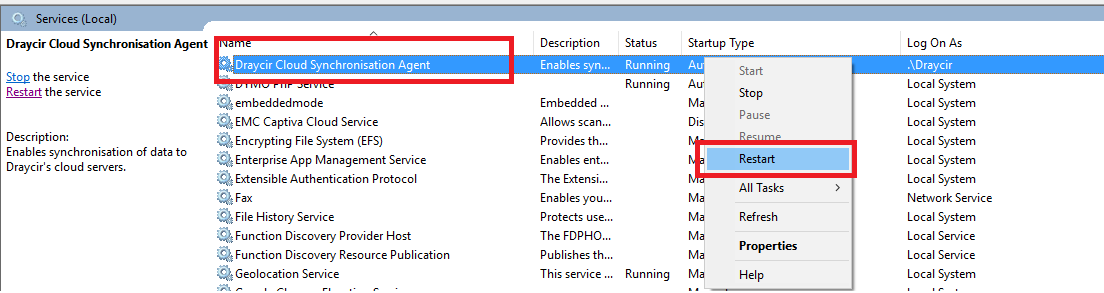
6. Open up Services.msc and locate the "Draycir Cloud Synchronisation Agent" and restart the service
(Please ensure the service is not in use before attempting to re-start)
Please not any documents which are in a Analyse state will not pick up the changes therefore the document will need to be re-uploaded for Recognition and Analysing
Knowledge Base Article Details
| Related Product | Spindle Purchase Invoice Recognition |
| Ref Number | KBA-11-03-008 |
| Document Date | 10/02/2020 |
| Original Author | Vijay Mistry |
| Document Version | v1.1 |
| Last updated | |
| Update Author |
Was this article helpful?
That’s Great!
Thank you for your feedback
Sorry! We couldn't be helpful
Thank you for your feedback
Feedback sent
We appreciate your effort and will try to fix the article