Microsoft App Registration
It is recommended that the following guide is completed by an IT professional with experience of Microsoft 365 and Azure .
This guide provides instructions on how to register Spindle Requisitions as an app in the Azure portal so the Microsoft identity platform can provide authentication and authorisation services for your application and its users.
Register an application
Registering your application establishes a trust relationship between Spindle Requisitions and the Microsoft identity platform. The trust is unidirectional: Spindle Requisitions trusts the Microsoft identity platform, and not the other way around.
Follow these steps to create the app registration:
1. Sign in to the Azure portal.
2. If you have access to multiple tenants, use the Directory + subscription filter in the top menu to select the tenant in which you want to register an application.
3. Search for and select Microsoft Entra ID (formerly Azure Active Directory).
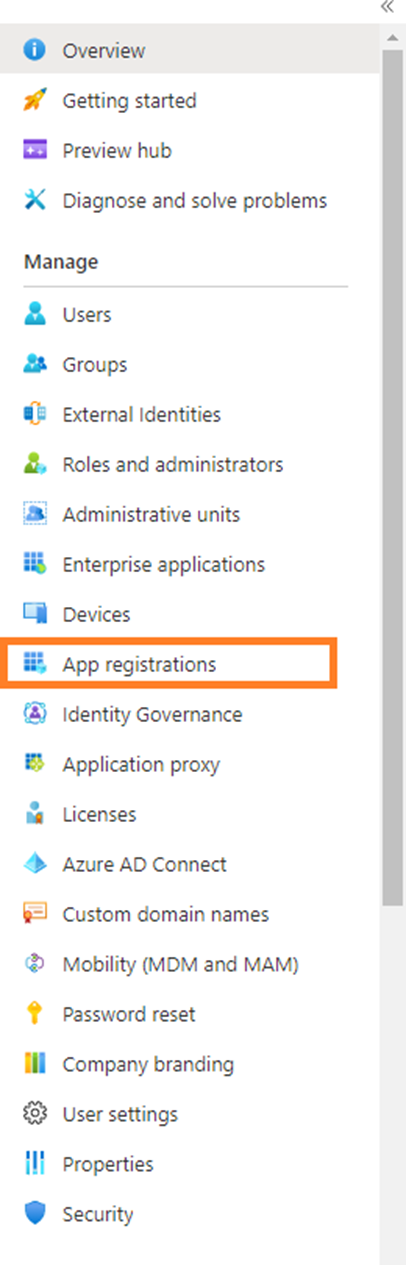
4. Under Manage, select App registrations.
5. Then select New registration.

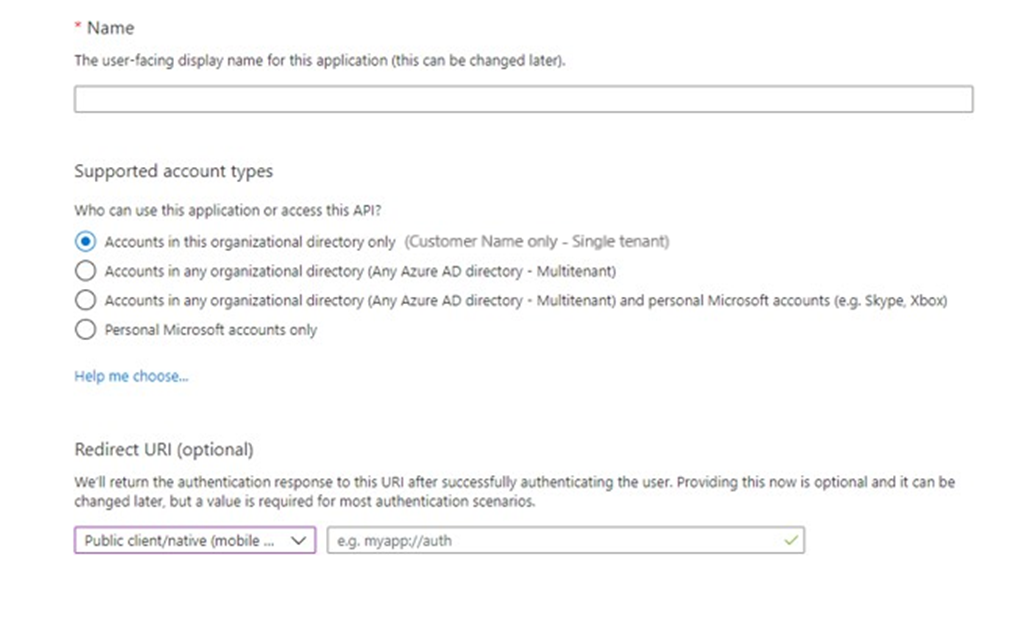
6. Enter a Name for the application, such as Spindle Requisitions or Spindle Requisitions Outgoing Mail, and select the Support Account Types, this should cover the account that needs access or needs to be accessed by the resource, in most cases this will be Single Tenant.
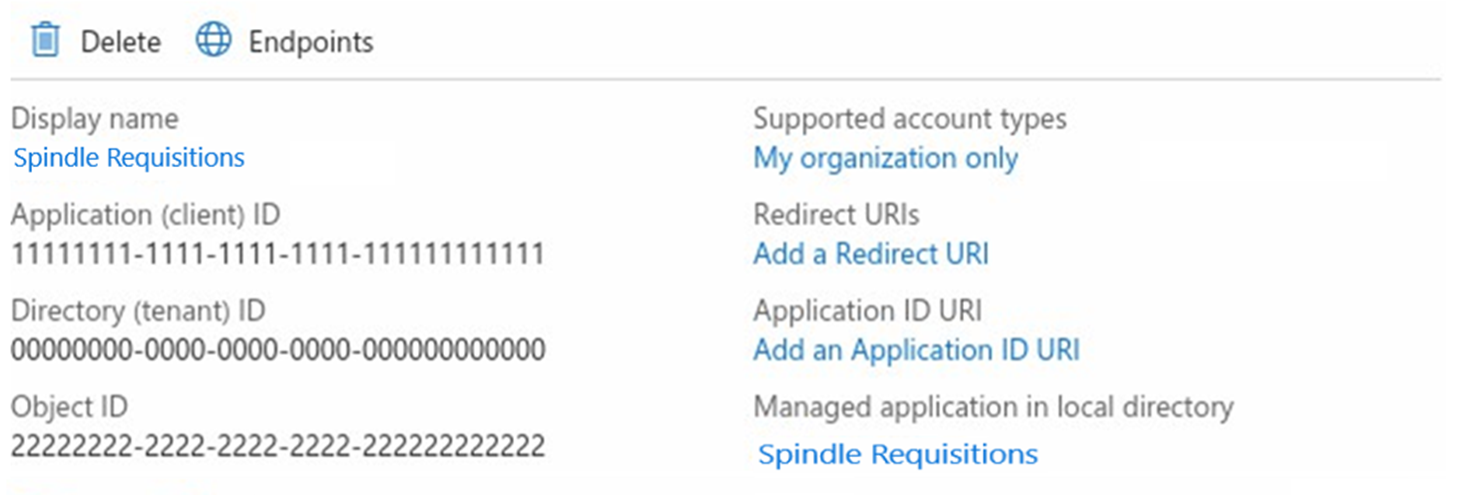
7. Once the App is created take a note of the Application ID (Client ID) and your Directory ID (Tenant ID), available in the overview section
8. Under Manage, select Certificates and Secrets.
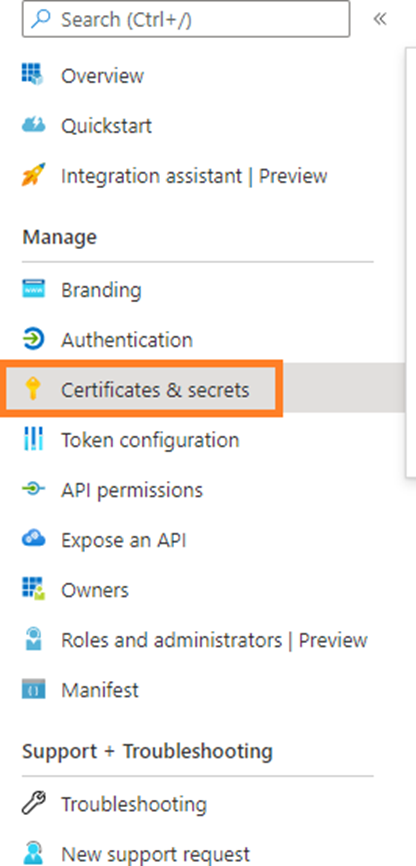
9. Then select New client secret.

10. Enter a Name for the client secret such as Spindle Requisitions or Spindle Requisitions Outgoing Mail and select when you would like it to expire. Please make a note of the expiry date and set a reminder to re-generate the Client Secret Value before the expiry date, this will then need re-applying in Spindle Requistions. The maximum length of time is based on security settings configured for the tenant.
Click Add.
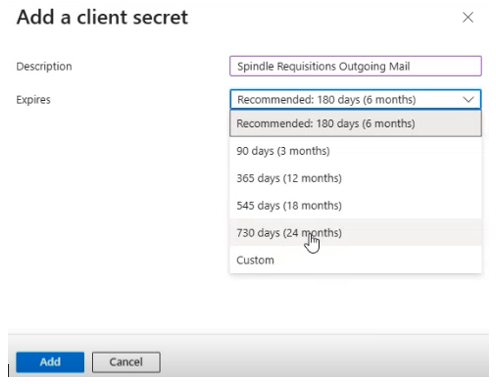
11. IMPORTANT! Once the secret has been generated, the secret value will be shown on screen, please take note of it or click the copy button at this point, as it will not be shown again. Ensure you copy the secret Value and not it's ID.
The secret value should be kept as secure as possible, it is recommended that the secret is generated and copied directly into the application or onto the computer, where is it going to be used.
12. Under Manage, select API Permissions.
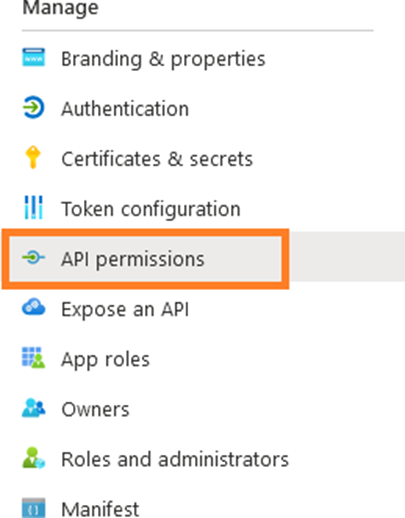
13. Click the Add a permission button

14. By default, the page opens at the Microsoft APIs overview.
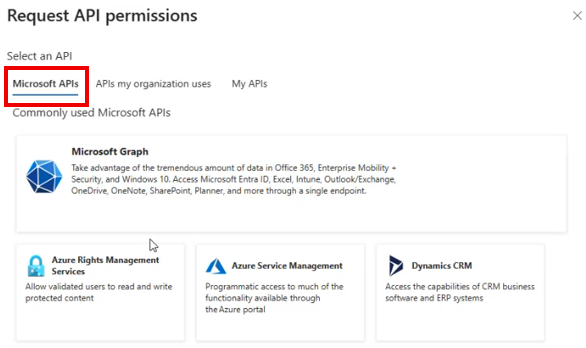
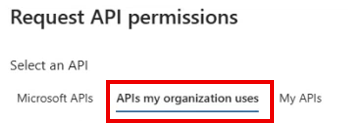
15. Select APIs my organization uses.
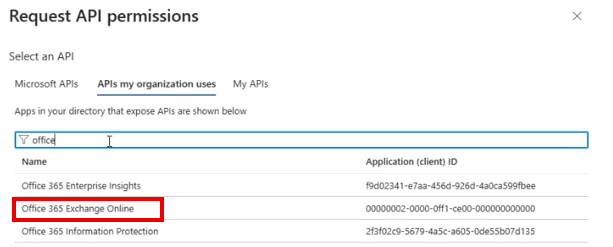
16. The following Office 365 Exchange Online permissions must be added:
- Mail.Read
- Mail.ReadWrite
- Mail.Send
Either select Office 365 Exchange Online from the list or use the search feature.
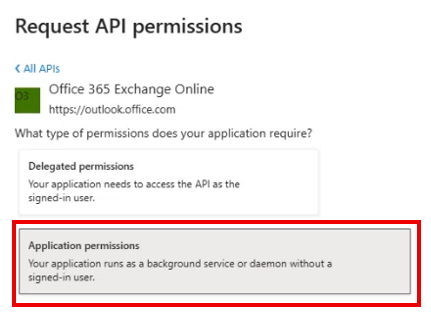
17. Two options are displayed, Delegated permissions or Application permissions. Select Application permissions as Spindle Requisitions sends mail in the background.
18. Various different permissions are displayed, scroll down to the Mail section.
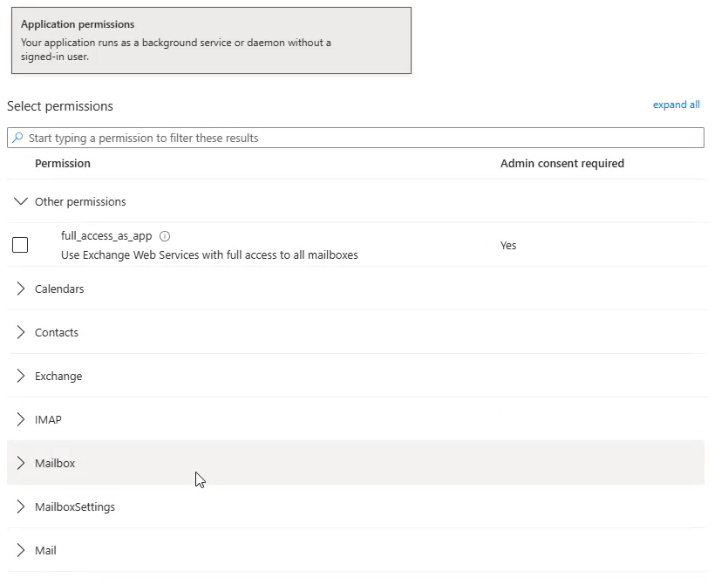
Tick the following permissions:
- Mail.Read
- Mail.ReadWrite
- Mail.Send
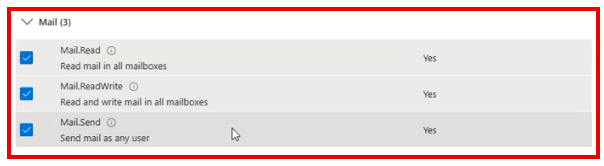
Click Add permissions.
19. It may be necessary to Grant admin consent if the Yes is displayed in the "Admin consent required" column
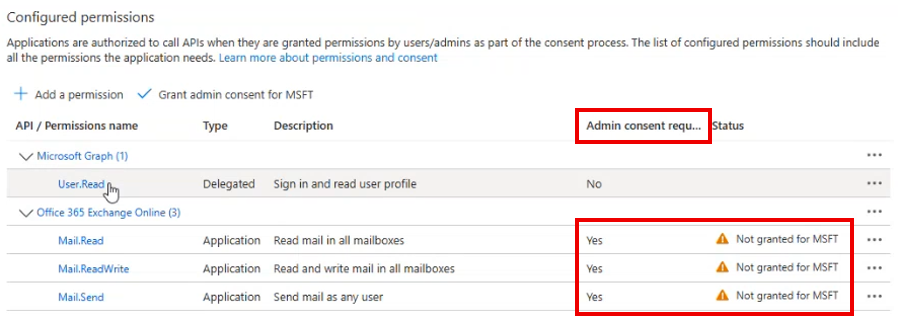
20. To Grant Permissions use the Grant admin Consent button at the top.
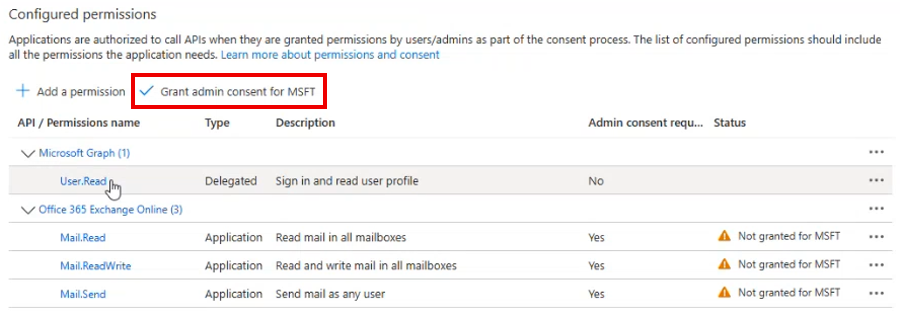
Please be aware, to Grant Permissions you must be a Global Administrator of the tenant.
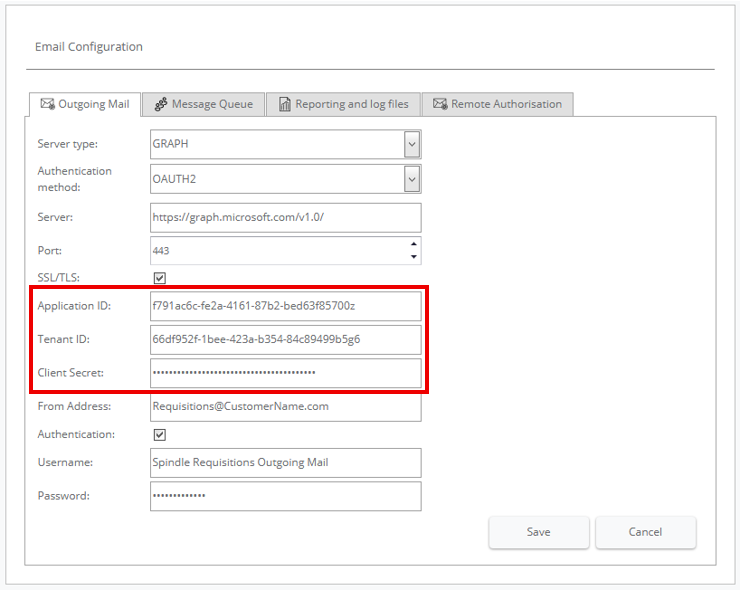
21. Apply the Application ID (client), Directory ID (tenant) and the secret value (not the secret id) to the Outgoing Mail tab in Configuration>Email Configuration in Spindle Requisitions.
API and permissions for services or daemon applications can give unrestricted access to a resource. Microsoft has introduced Role Based Access Control (RBAC) for Applications as the preferred method for restricting application permissions in Exchange Online. RBAC for Applications replaces the legacy Application Access Policy model and provides more granular, flexible, and maintainable controls over which mailboxes an application can access. You may need to consider using an RBAC for Applications or Application Access Policy for a more granular level of security permissions.
Additional Resources
• Roles Based Access Control for Applications in Exchange Online https://learn.microsoft.com/en-us/exchange/permissions-exo/application-rbac
• Microsoft Quick start App Registration - https://docs.microsoft.com/en-us/azure/active-directory/develop/quickstart-register-app
• Limiting application permissions to specific Exchange Online mailboxes https://learn.microsoft.com/en-us/graph/auth-limitmailbox-access
• Connect to Exchange Online PowerShell https://learn.microsoft.com/en-us/powershell/exchange/connect-to-exchange-onlinepowershell?view=exchange-ps&preserve-view=true
• New-ApplicationAccessPolicy https://learn.microsoft.com/en-gb/powershell/module/exchange/new-applicationaccesspolicy? view=exchange-ps
• Announcement about support in EWS https://techcommunity.microsoft.com/t5/exchange-team-blog/application-access-policysupport-in-ews/ba-p/2110361
Was this article helpful?
That’s Great!
Thank you for your feedback
Sorry! We couldn't be helpful
Thank you for your feedback
Feedback sent
We appreciate your effort and will try to fix the article