Step 1) Open Outlook > Click on "Options"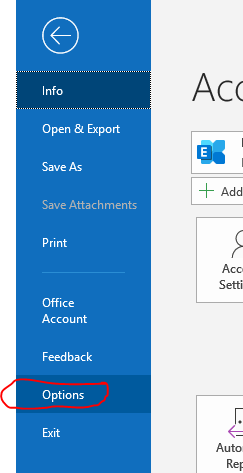
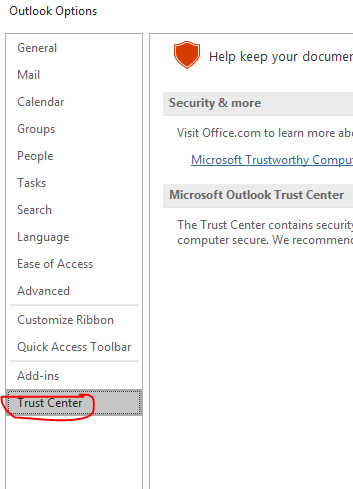
Step 2) Click on the "Trust Center" tab
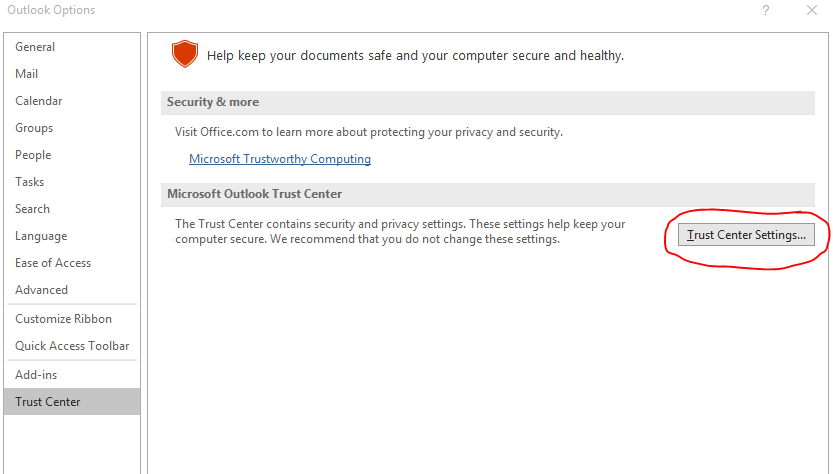
Step 3) Click on "Trust Center Settings"
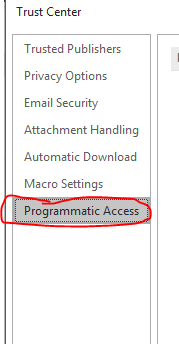
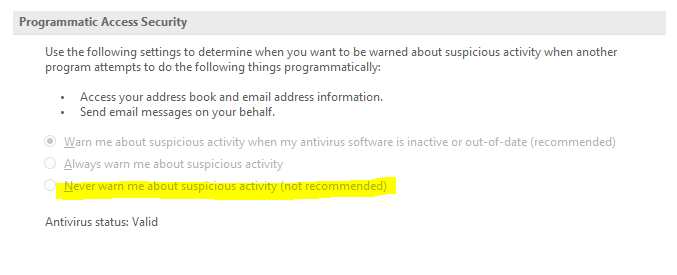
Step 4) Click on "Programmatic Access" tab
Step 5) If you don't want a programmatic access pop up in outlook each time you print > Tick "Never warn me about suspicious activity"
Alternative method (via registry)
To disable the "Never warn me about suspicious activity" alert in older Outlook versions (2007-2016), set the PromptOOMWarnings registry value to 2 in the Security key.
Note: Changing this setting is not recommended as it reduces security.
Registry Settings
Path: HKEY_CURRENT_USER\Software\Policies\Microsoft\Office\<x.0>\Outlook\Security
Note: <x.0> corresponds to the version: 12.0 for 2007, 14.0 for 2010, 15.0 for 2013, 16.0 for 2016/2019/365.
Value Name: PromptOOMWarnings
Value Type: DWORD (32-bit)
Value Data: 2 (Never warn)
Was this article helpful?
That’s Great!
Thank you for your feedback
Sorry! We couldn't be helpful
Thank you for your feedback
Feedback sent
We appreciate your effort and will try to fix the article