Introduction
As of May 1st 2026 Microsoft plan to remove the ability to connect to a SharePoint Online service using Basic Authentication (user name & Password), instead requiring Modern Authentication. Draycir have developed an updated SharePoint device which will be included in a later version of Spindle Document Distribution and Spindle Document Management.
Applies to
- Spindle Document Distribution Standalone
- Spindle Document Distribution Cloud
- Spindle Document Management
Process Overview
Running steps documented in KBA-01-02-062 SharePoint Legacy Authentication Extension will retain Basic Authentication for some SharePoint Online tenants but some customers have had one of the required parameters removed early which means that this method is unavailable to them.
We advise trying this in the first instance as it is the simplest way to restore SharePoint functionality until an updated SharePoint connector is released for Spindle Document Distribution in a later version
For customers who cannot use the simple process above, we can advise the following process:
1) Documents intended for SharePoint are archived to a file archive until such time that the connection can be re-established with SharePoint Online, by upgrading to a newer version of Spindle Document Distribution.
Once the updated version is released and installed, and the new SharePoint device is configured, you can then:
2) Re-process the documents from the file archive through Spindle Document Distribution to upload them to SharePoint.
3) Reconfigure Spindle Document Distribution to use the updated SharePoint device.
Process
While SharePoint connectivity is not available:
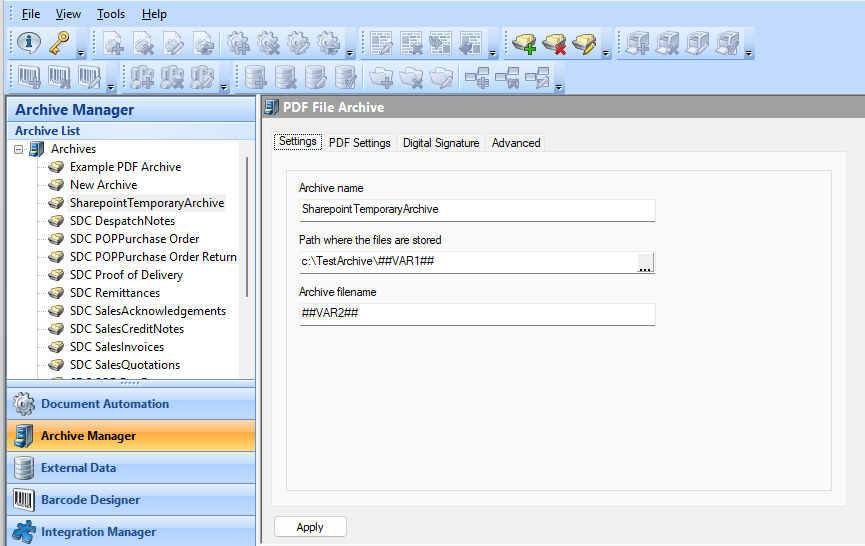
Add a PDF File Archive for each document type, set its path to a location in the filesystem and set the file name
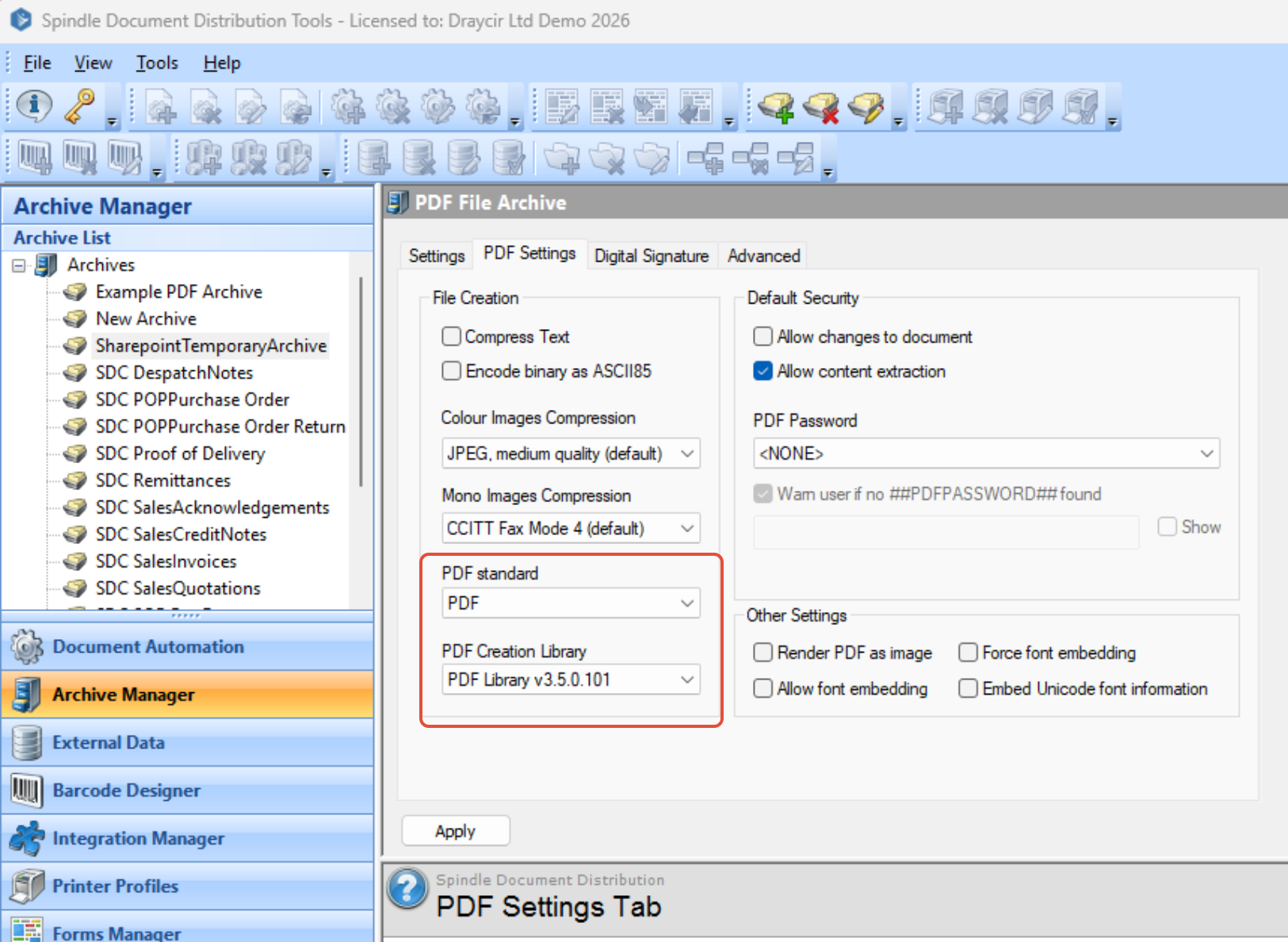
In the PDF Settings tab, select PDF as the PDF Standard and PDFLibrary v3.05.0.101 as the PDF Creation Library
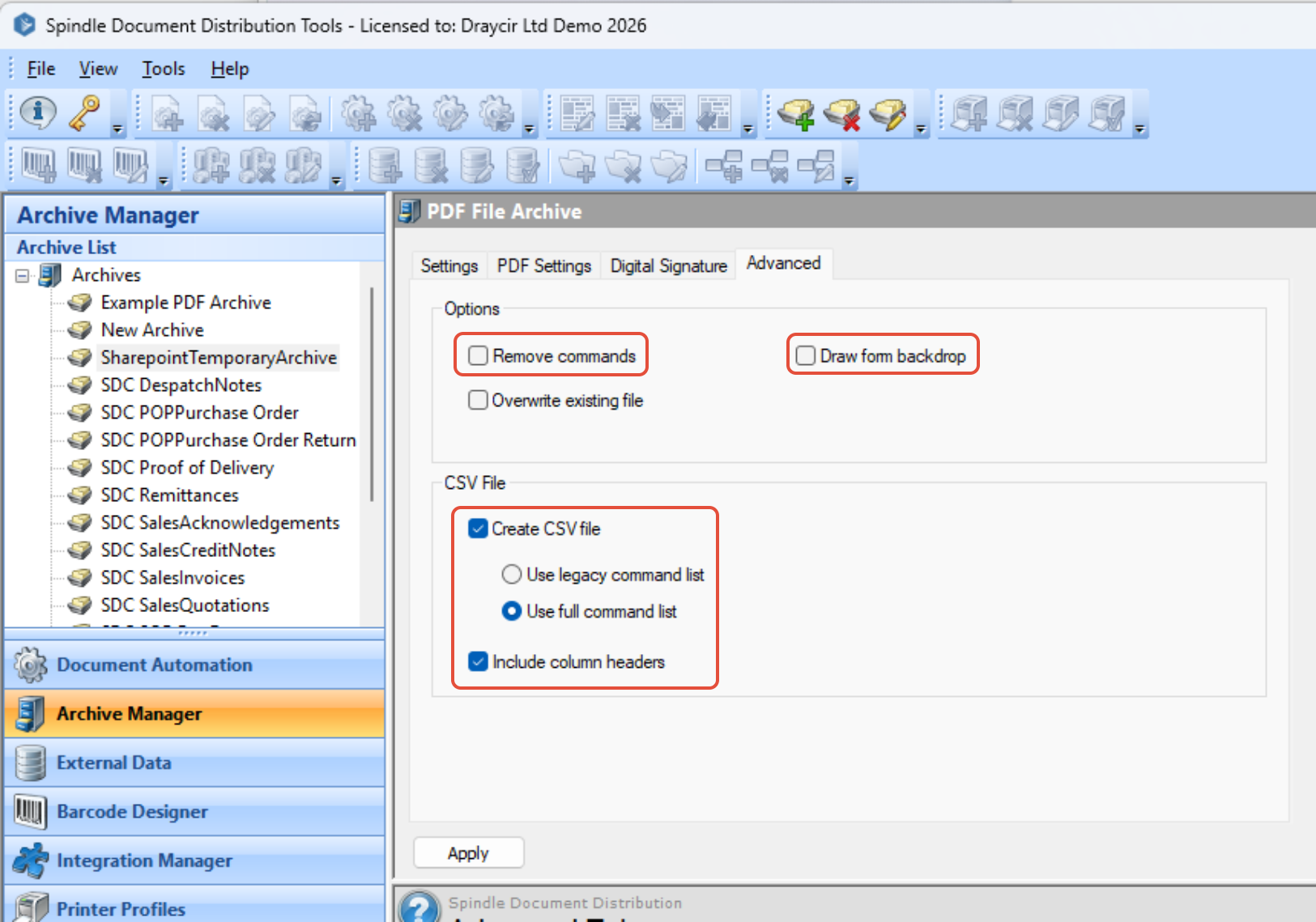
In the Advanced Settings tab uncheck Remove commands and Draw form backdrop, and select the options to create a full CSV file (for safety, this logs the values of all ##COMMAND...##s from the document.
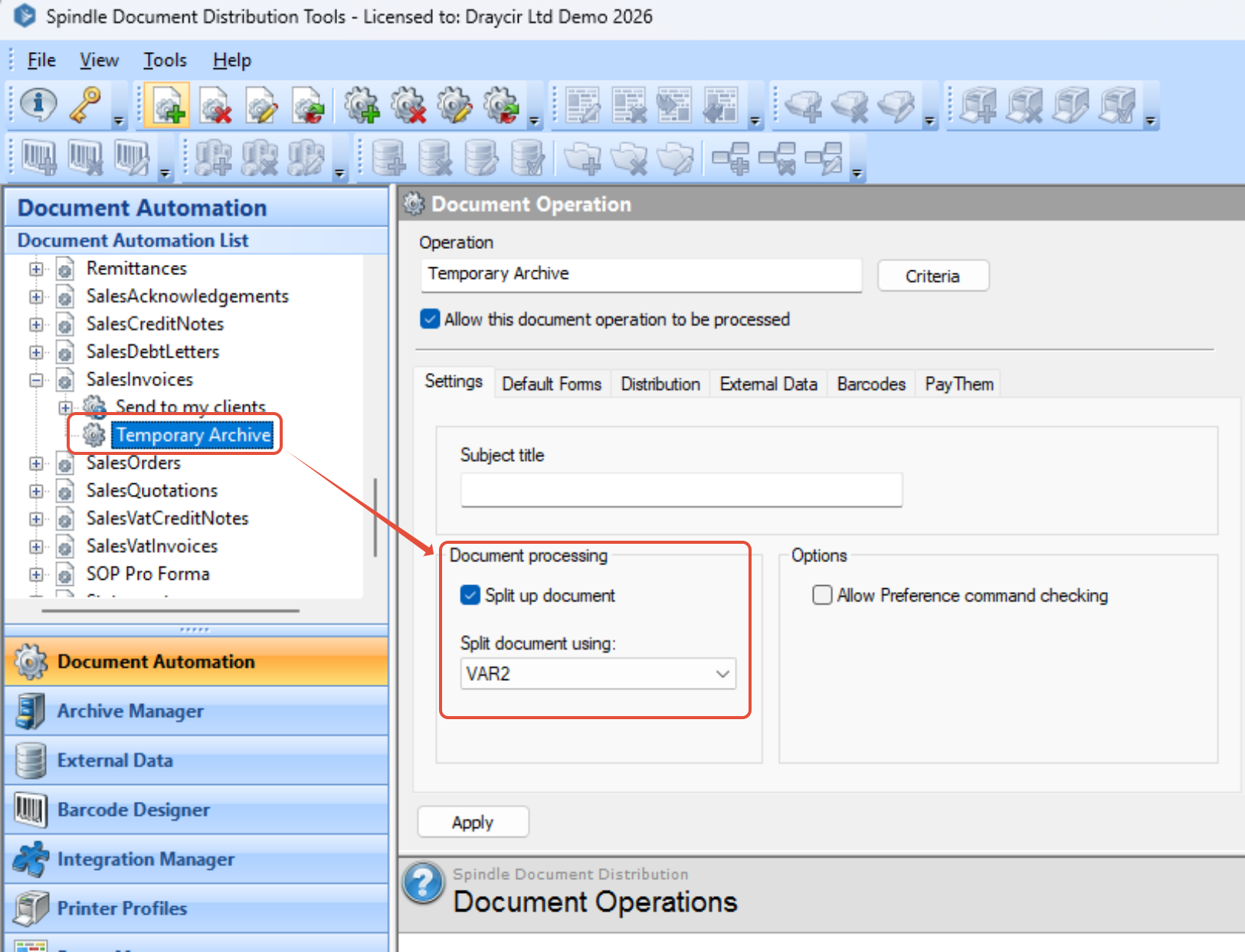
Next Add an Archive operation to the exisiting Document Automation and set its Split variable to match the existing operation(s):
Under Distribution, check Enable Archive and uncheck Warn user if no distribution method found
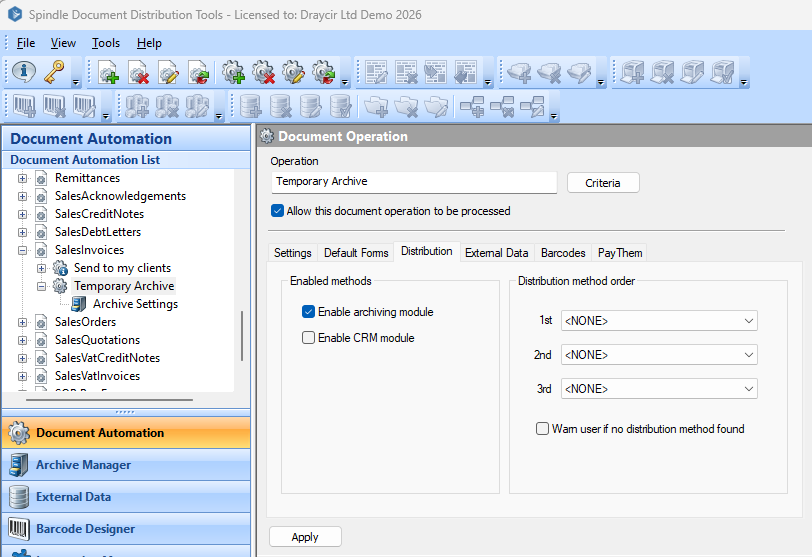
The existing SharePoint archive operation is still present, so we will need to remove this to avoid errors. Under the existing operation, uncheck Enable archiving:
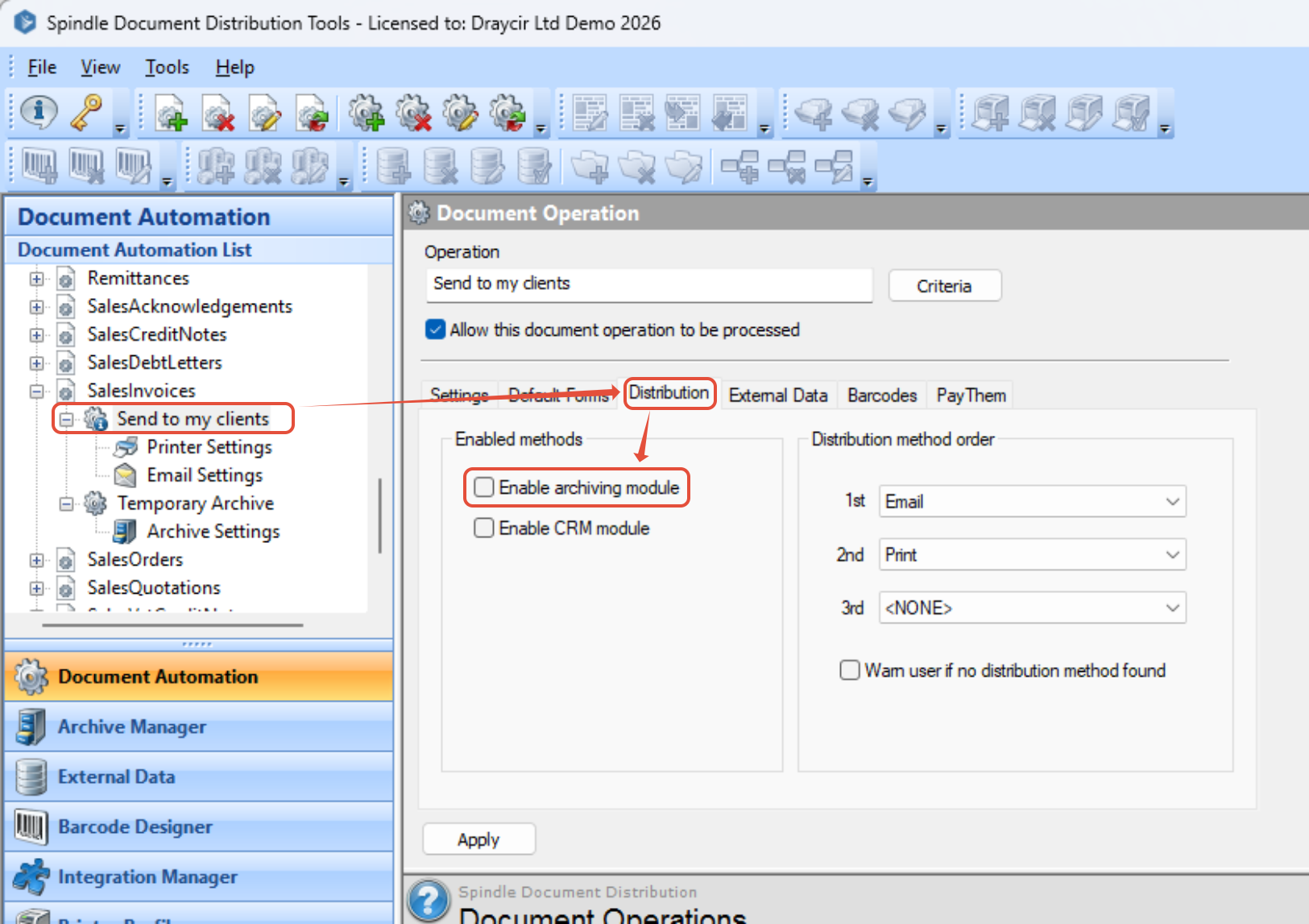
Any documents printed through this document Automation will be archived with all its Spindle Document Distribution ##COMMAND...##s intact.
Once the SharePoint connection can be re-established - Step One
Once the latest release is available you can now re-connect to your SharePoint Online sites.
In Spindle Document Distribution Tools go to User Settings>Archive Settings, and select SharePoint Online and click Setup, then "Sign in to your Microsoft Account":
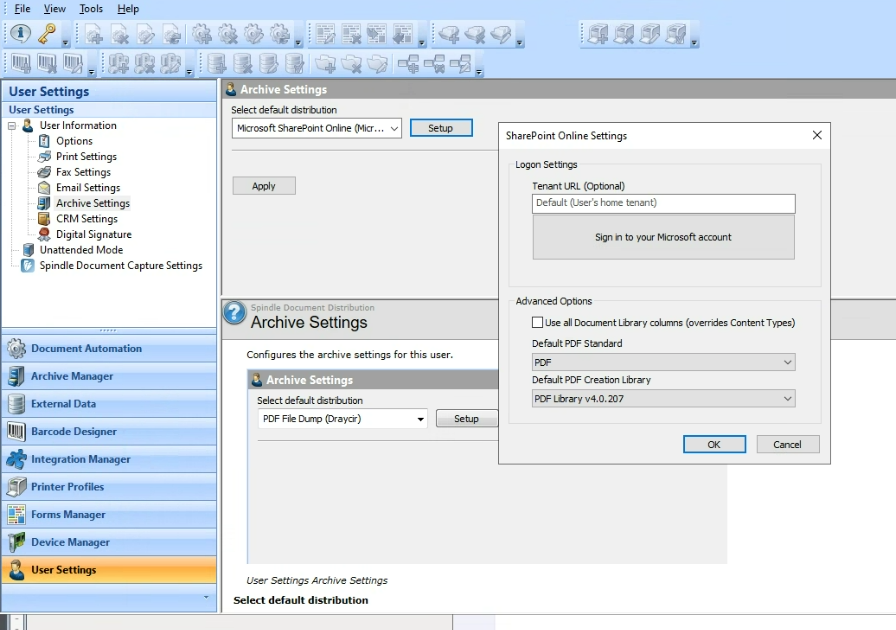
Sign in with your Microsoft Credentials including any MFA that may be required.
Create a new SharePoint archive in Archive Manager:
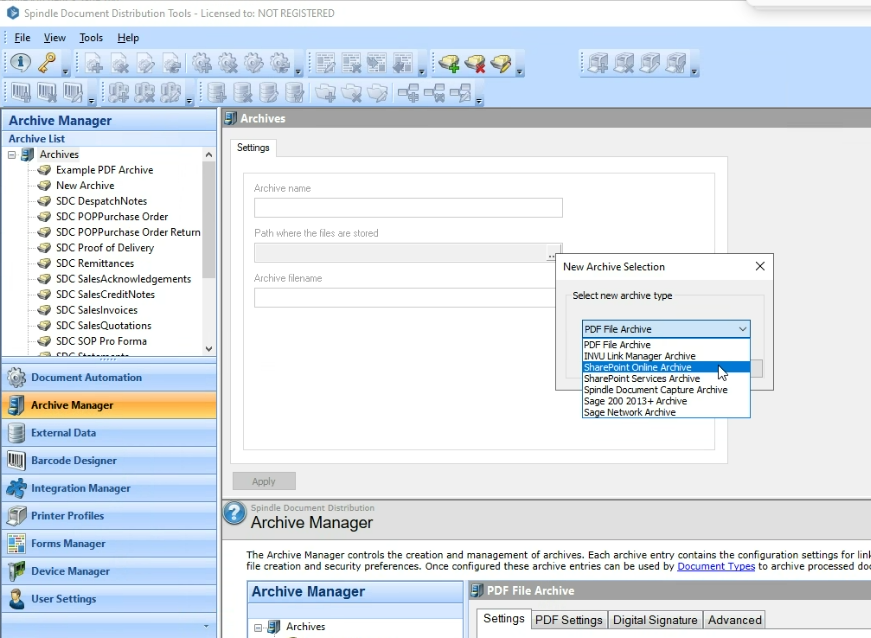
Configure this new archive to match the previous SharePoint Archive.
Your next goal is to get the documents from the PDF archive into SharePoint, the second step is to set the environment back to day-to-day functioning.
To revert the settings and process the documents that were saved off in the above steps.
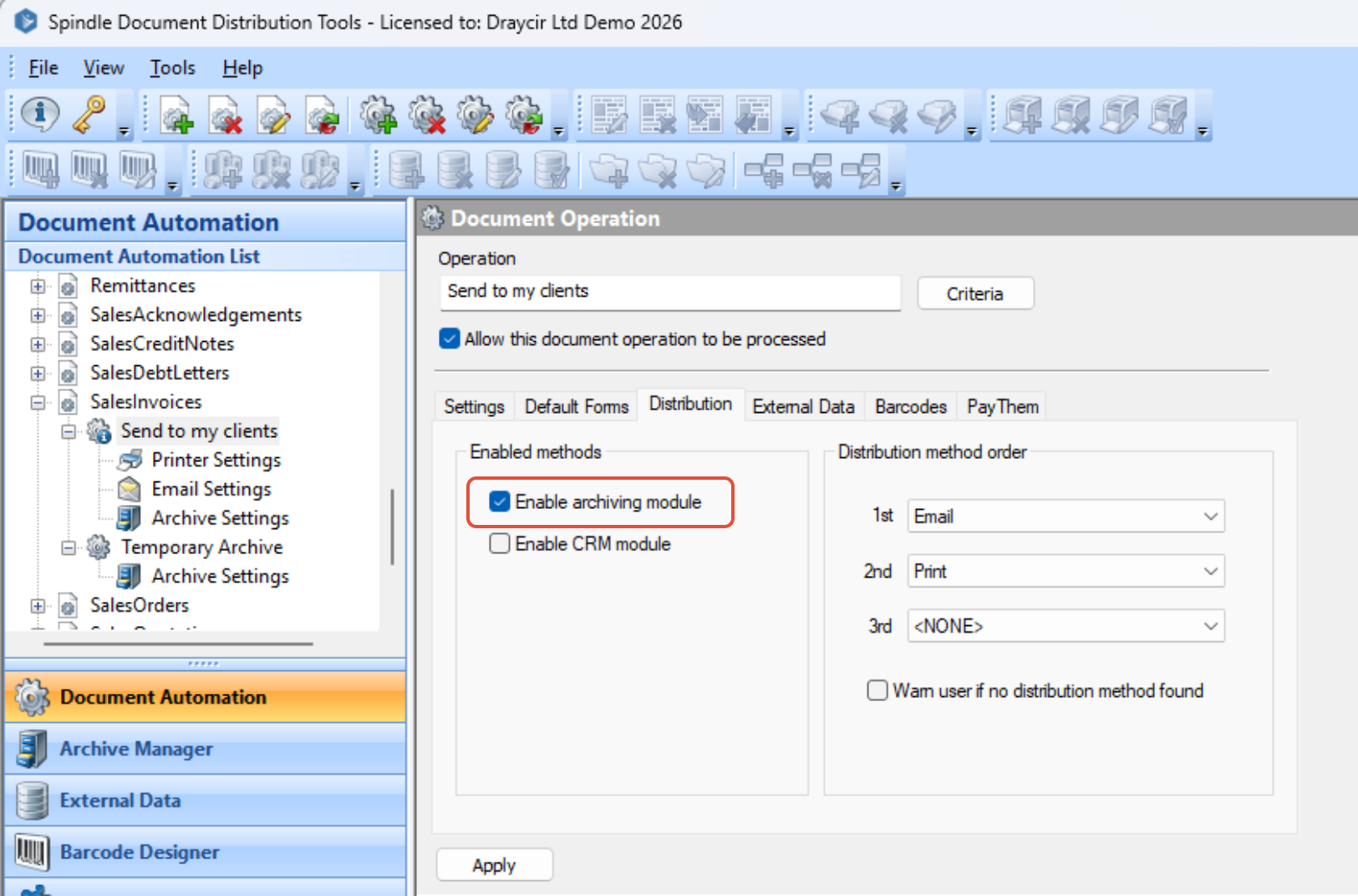
First, re-enable the archive operation for the existing operation:
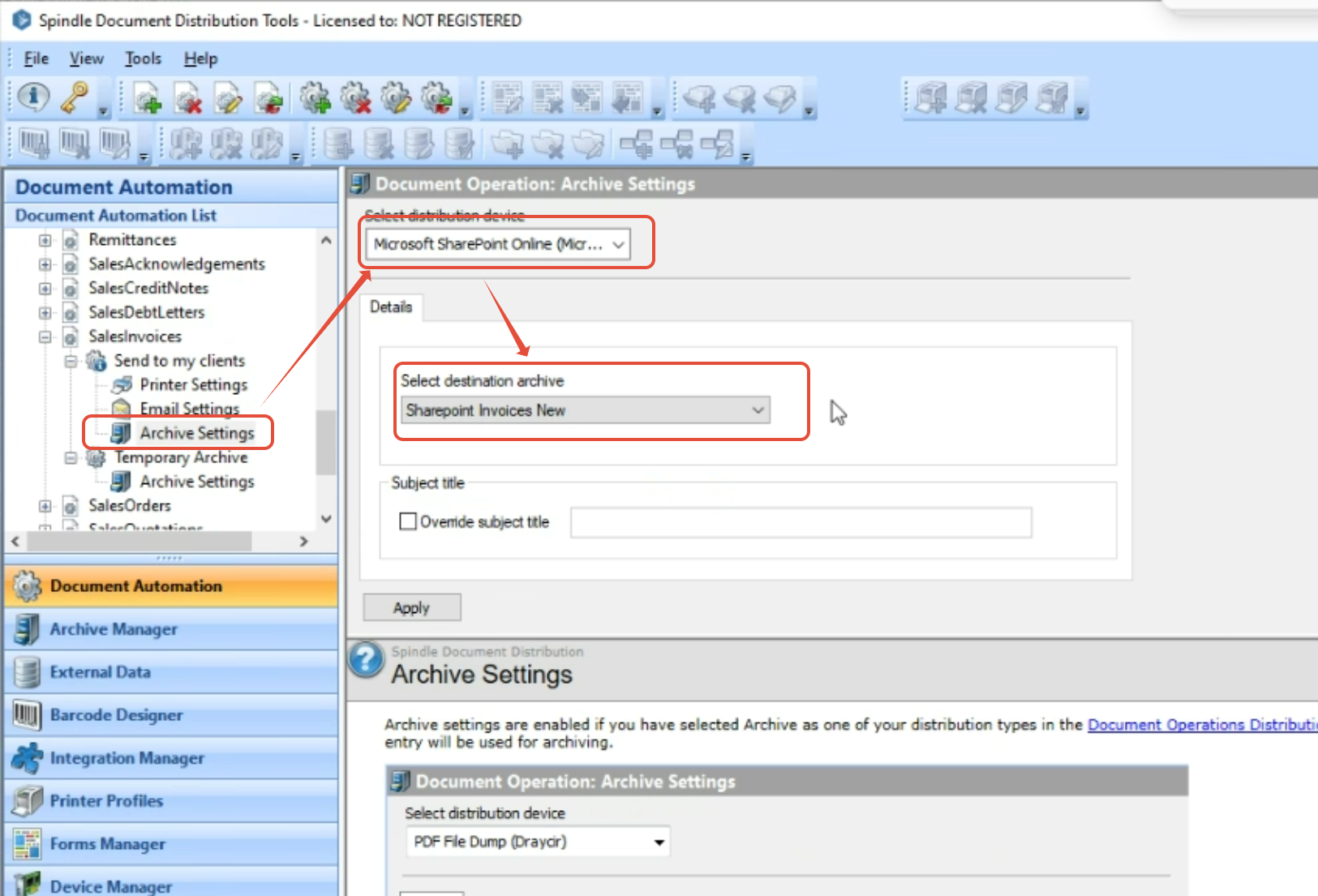
Then click Archive Settings and select your newly created SharePoint Archive.
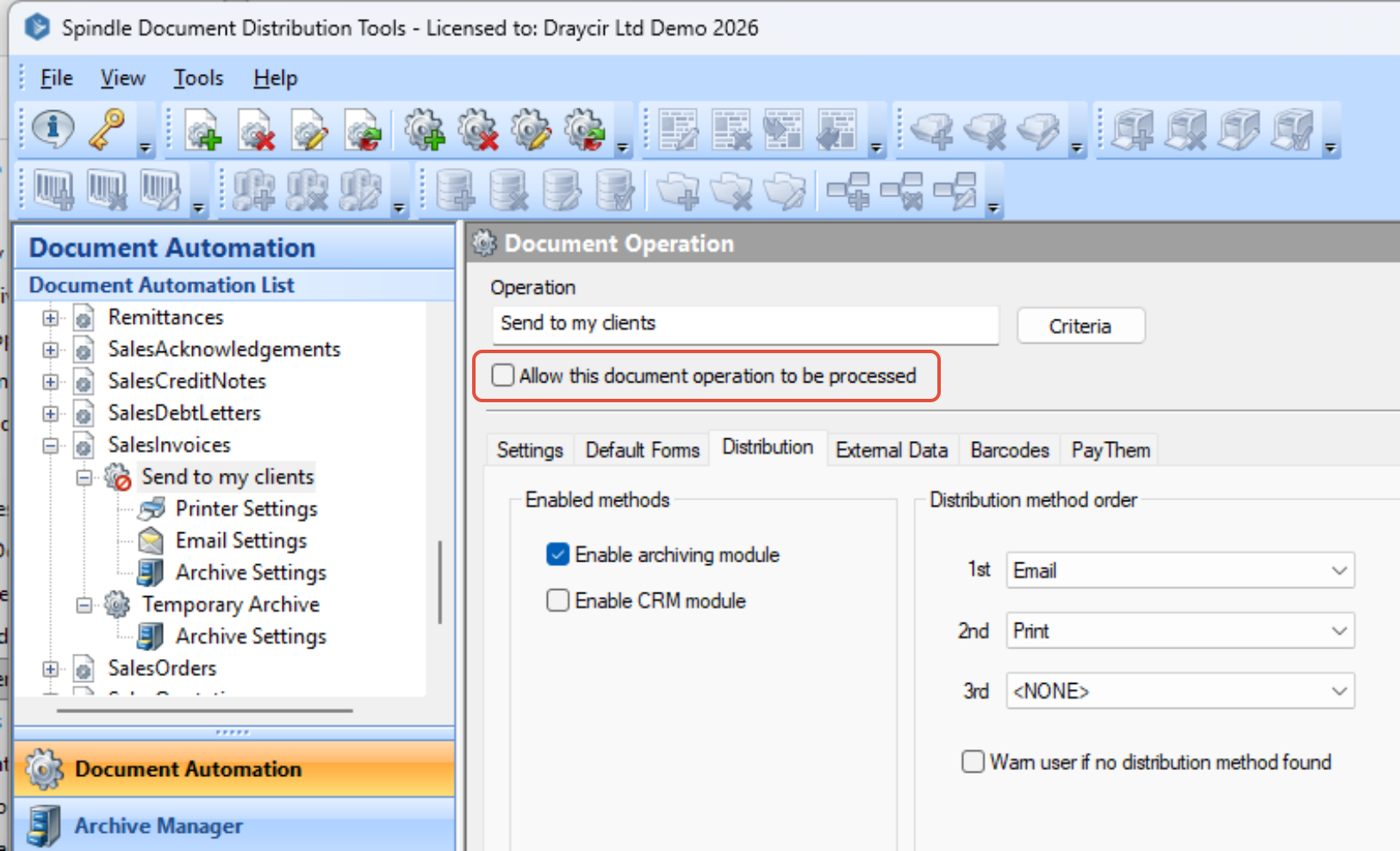
You do not need to use this just yet, so disable the document operation by unchecking Allow this document operation to be processed:
On the temporary archive operation, switch the archive from a PDF archive to the newly created SharePoint Archive:
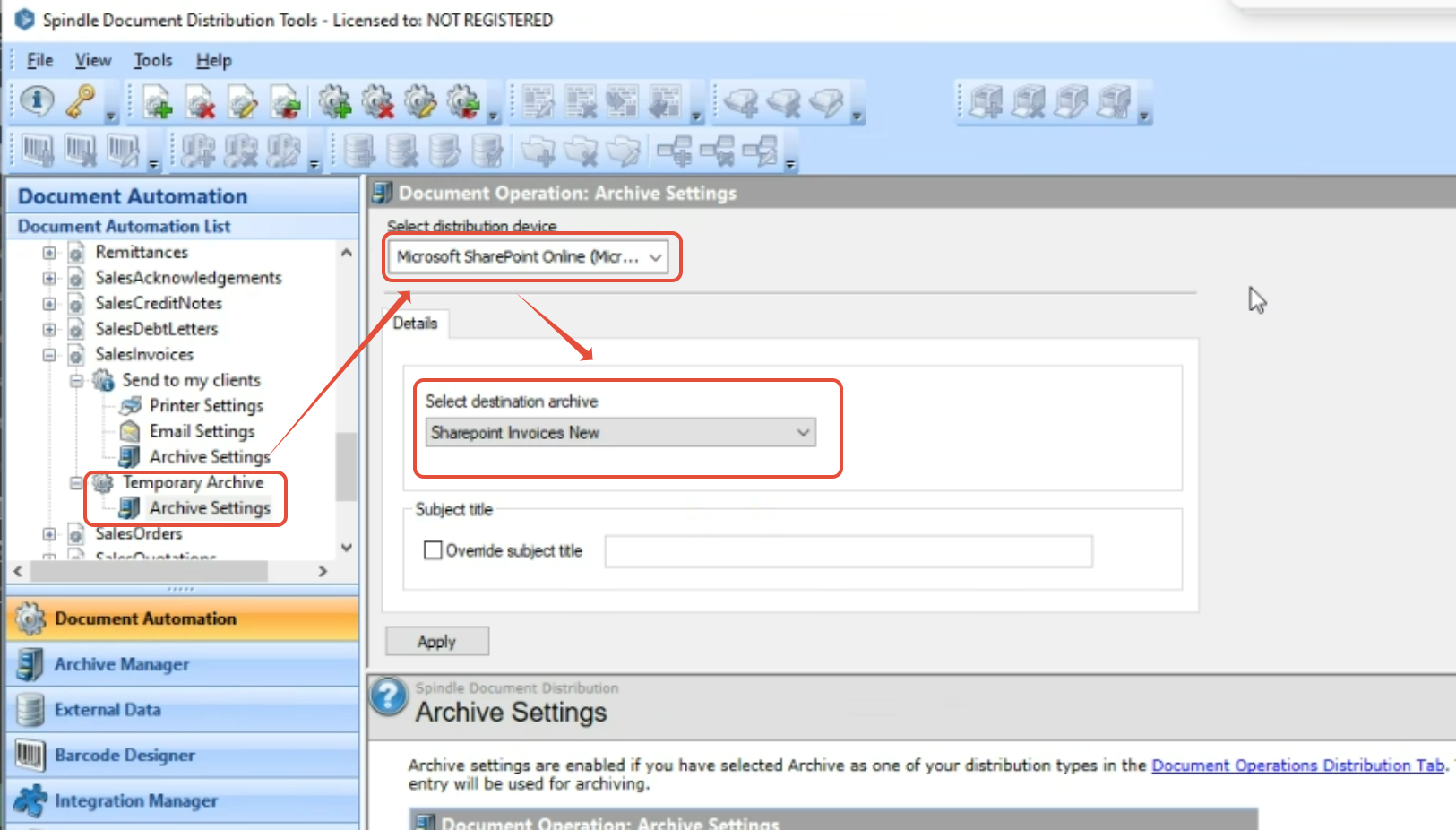
Spindle Document Distribution is now configured to only archive into SharePoint online. You can now use PDF to Spindle to monitor a folder and process through Spindle Pro Auto.
Copying files from the file archive onto the monitored folder will make Spindle Document Distribution archive these documents containing the original data to SharePoint Online. Depending on the number of documents, this step may take some time.
Note: Do not move the files into the monitored folder, so that the originals are retained in case of any issues with the processing.
Once the SharePoint connection can be re-established - Step Two
With the documents that were temporarily diverted now back in SharePoint, you need to restore the original configuration.
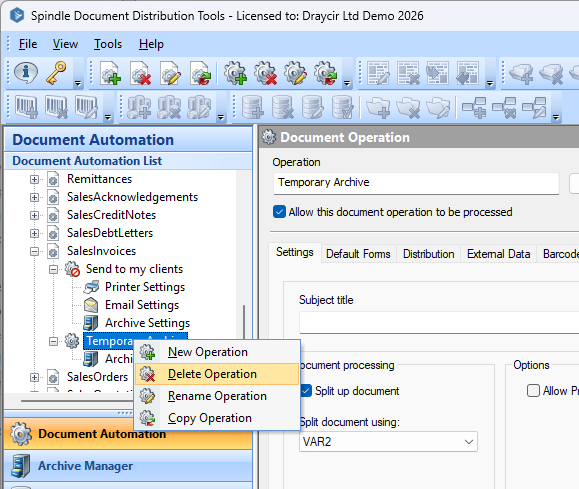
Delete the temporary archive operation from the Document Automation.
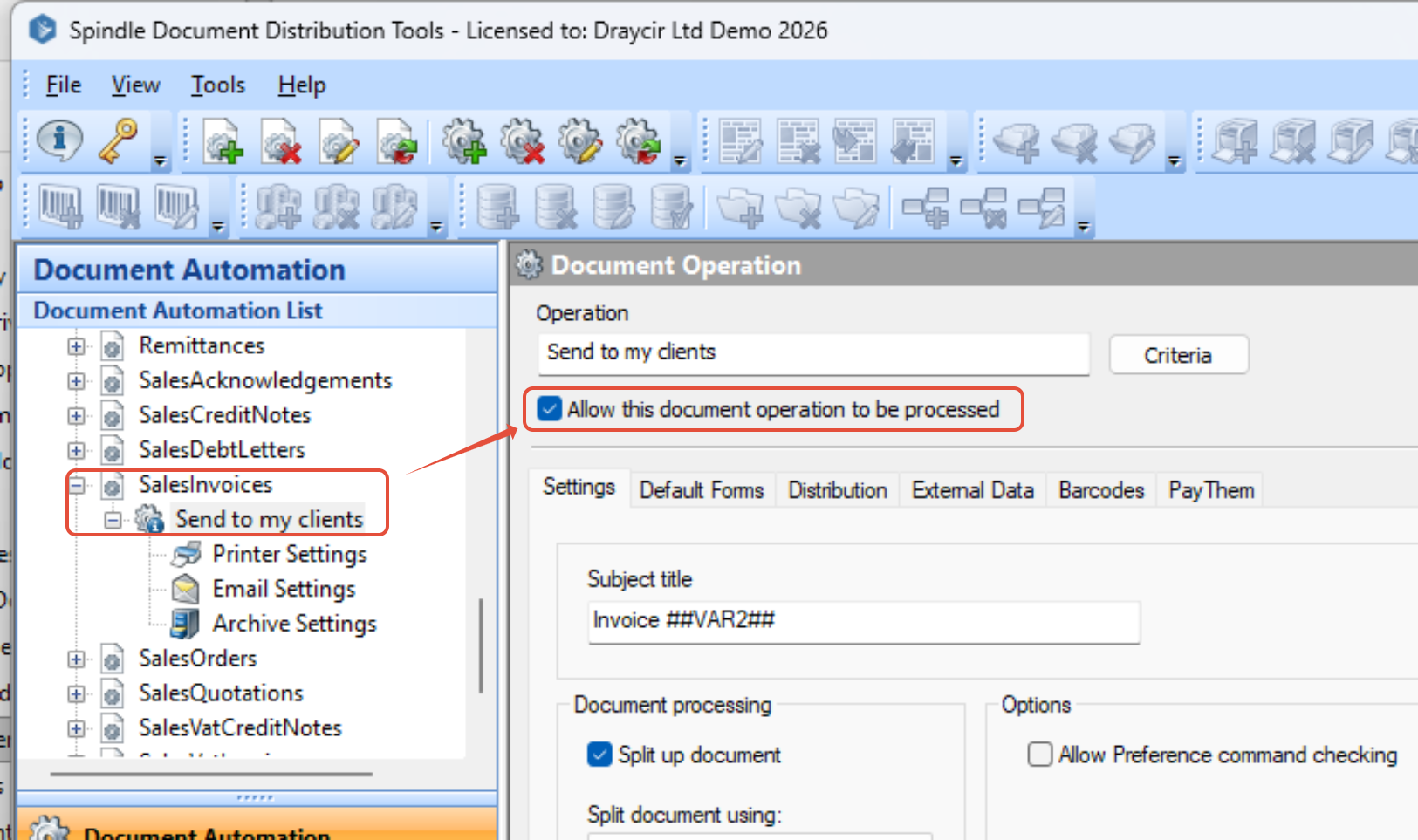
and re-enable the existing document operation.
Notes
- Perform the above for each document type required (e.g. Invoices, Order Acknowledgment, Statements etc.)
- The updated components to allow communication using Modern Authentication will require an upgrade to Spindle Document Distribution.
Knowledge Base Article Details
| Related Product | Spindle Document Distribution |
| Reference Number | KBA-01-02-063 |
| Document Date | 13/04/2026 |
| Original Author | Vince Hodgson |
| Document Version | 1.3 |
| Last Updated | 23/04/2026 |
| Update Author | Vince Hodgson |
Was this article helpful?
That’s Great!
Thank you for your feedback
Sorry! We couldn't be helpful
Thank you for your feedback
Feedback sent
We appreciate your effort and will try to fix the article