Introduction
Microsoft has postponed the retirement of Basic Authentication for SMTP AUTH in Exchange Online. Basic Authentication will continue to be supported until the end of December 2026, after which it will be disabled by default. Microsoft has stated that the permanent retirement of Basic Authentication for SMTP AUTH will be announced during the second half of 2027.
To ensure continued compatibility with Microsoft 365, Spindle Report Scheduler version 3.32 and later supports the Microsoft Graph Email Connector, which uses modern authentication (OAuth 2.0) and should be used instead of SMTP AUTH with Basic Authentication.
Applies to
Spindle Report Scheduler v3.32 onwards
Resolution
1. Register the application in Microsoft Entra ID
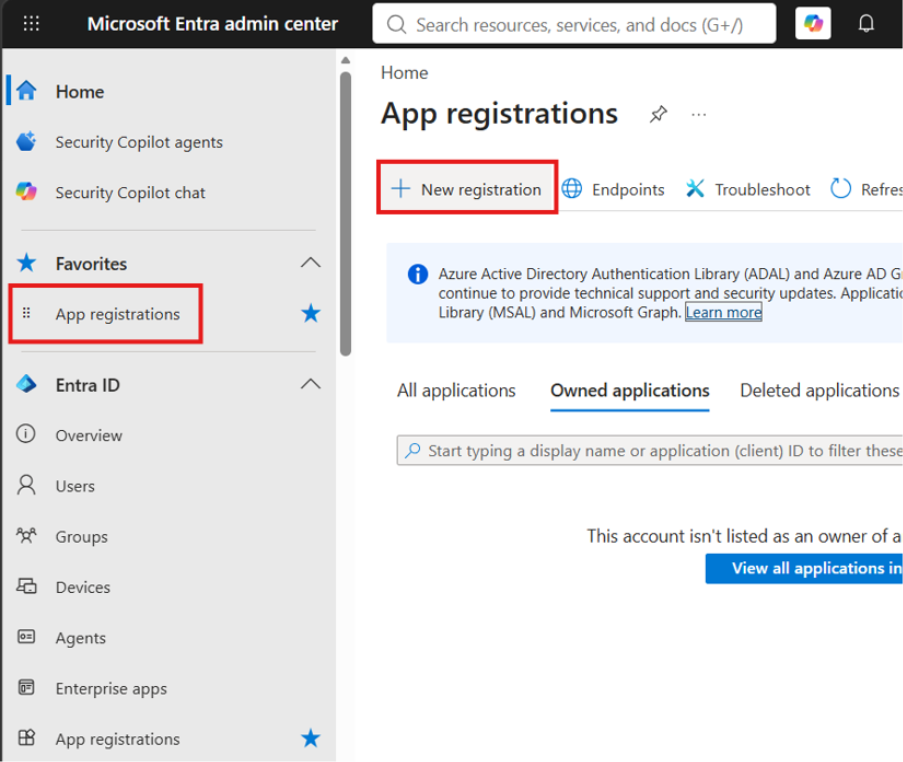
Sign in to the Microsoft Entra admin centre at https://entra.microsoft.com.
Go to Entra ID > App registrations, then select New registration.
Enter the following details:
Name: For example, Spindle Report Scheduler Email.
Supported account types: Select Accounts in this organisational directory only (Single tenant).
Redirect URI: Leave this blank. It is not required for app-only authentication.
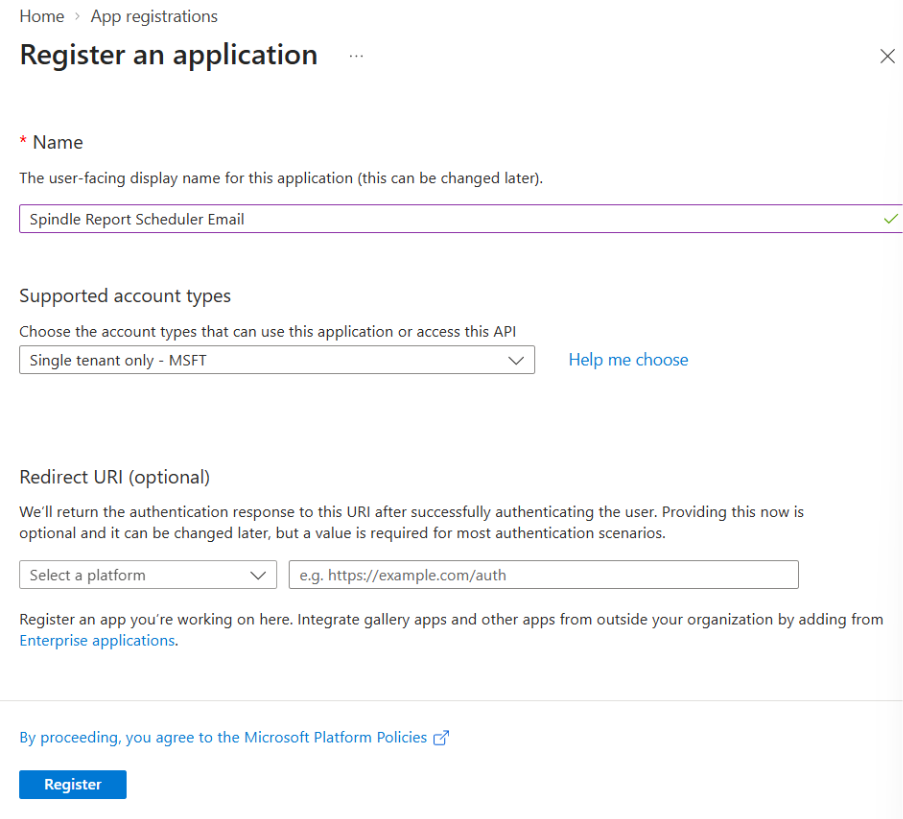
Select Register.
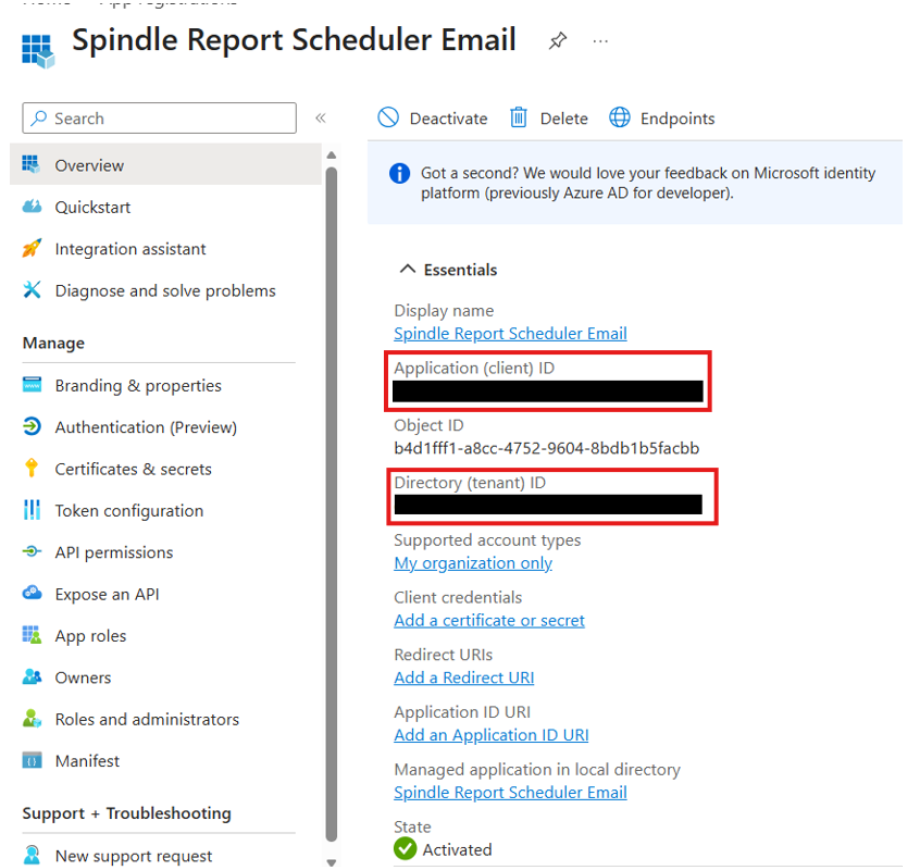
On the application Overview page, copy and securely store the following values. These will be needed later in Spindle Report Scheduler Tools:
Application (client) ID
Directory (tenant) ID
2. Grant the application permissions
In the app registration, open API permissions.
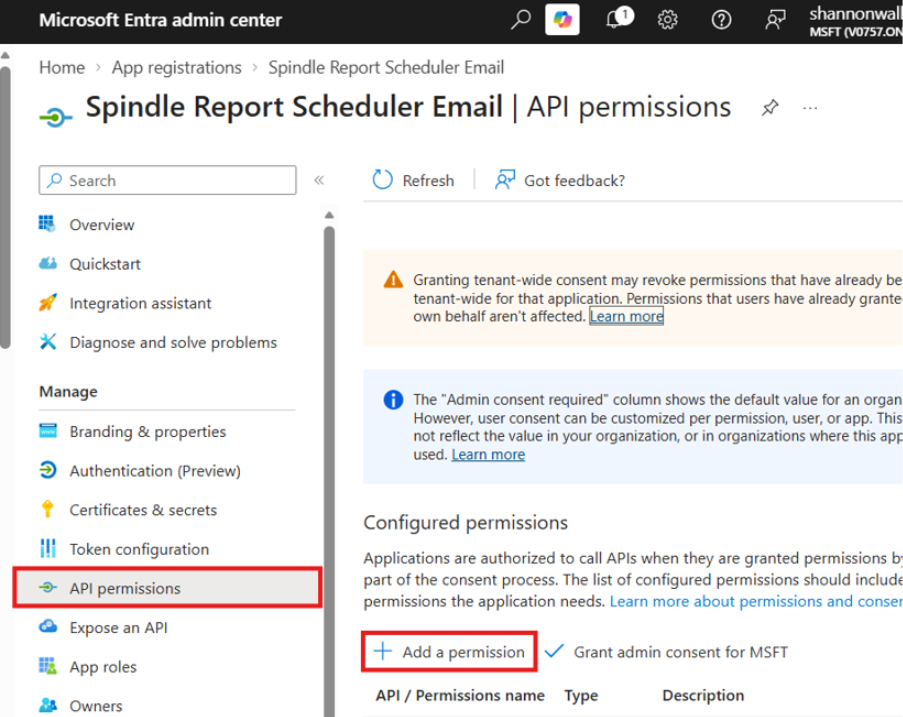
Select Add a permission > Microsoft Graph.
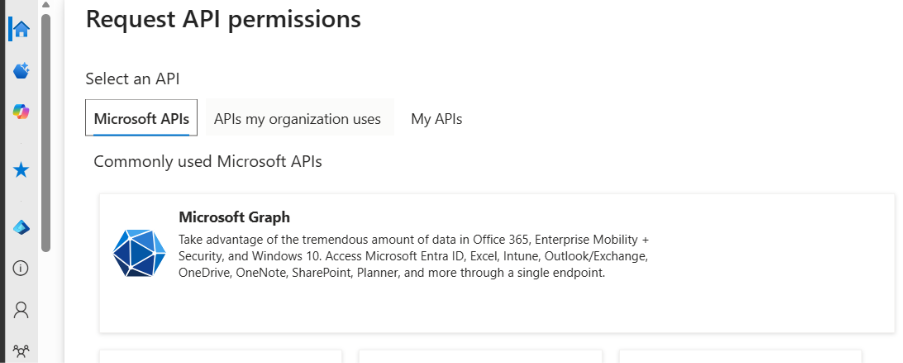
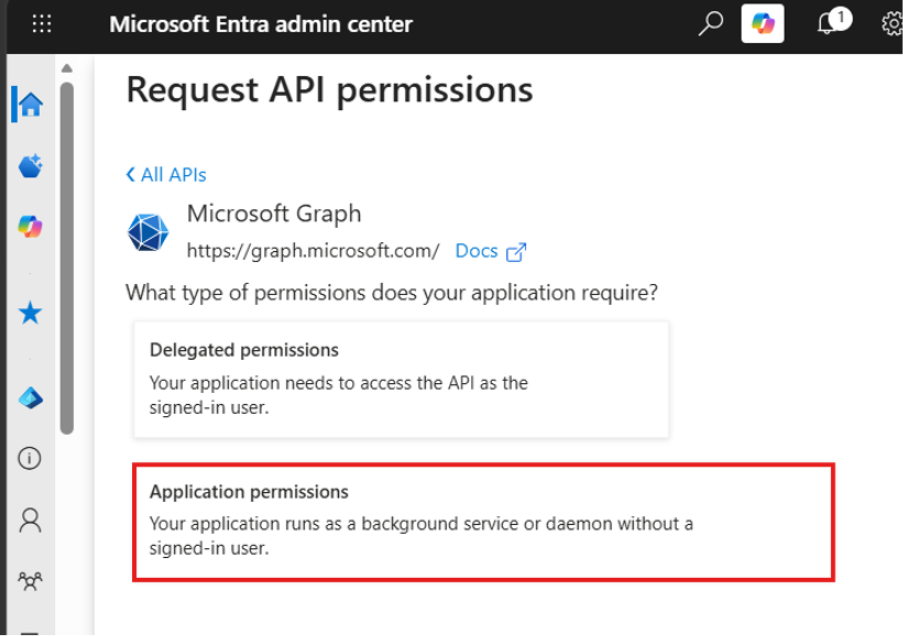
Select Application permissions. Do not select Delegated permissions, because there is no signed-in user for this process.
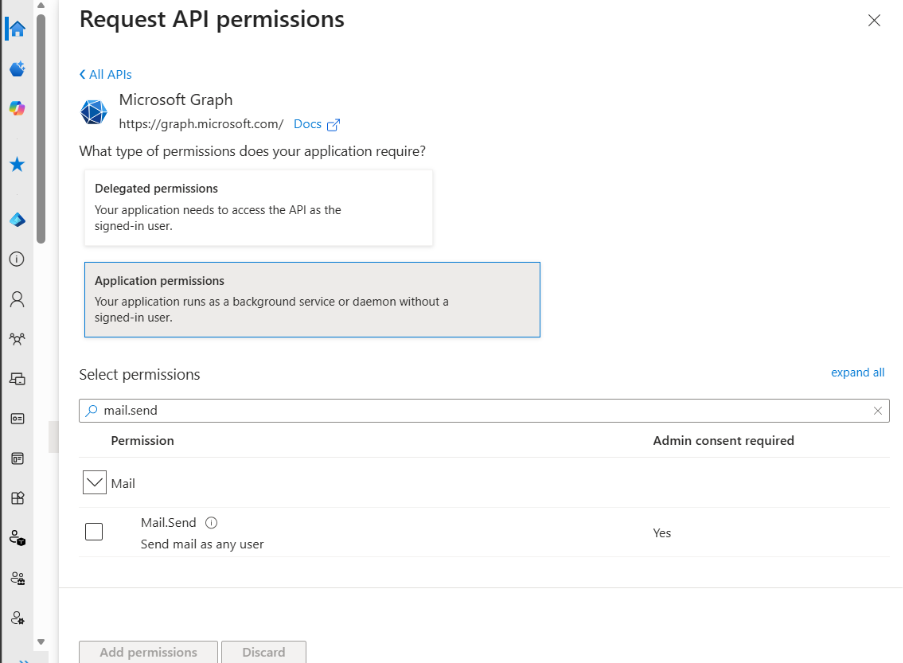
Search for and select Mail.Send, then select Add permissions.
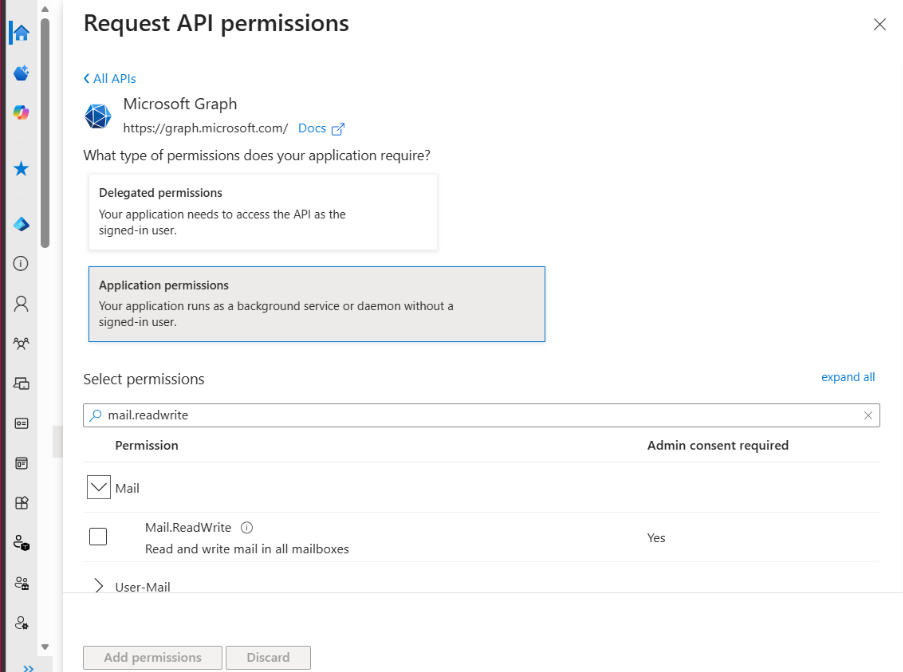
If reports may include attachments larger than approximately 3 MB, also add Mail.ReadWrite. Microsoft Graph requires this when creating a draft message and uploading large attachments in chunks. Smaller emails only require Mail.Send.
Return to the API permissions page, select Grant admin consent for your tenant, then confirm.
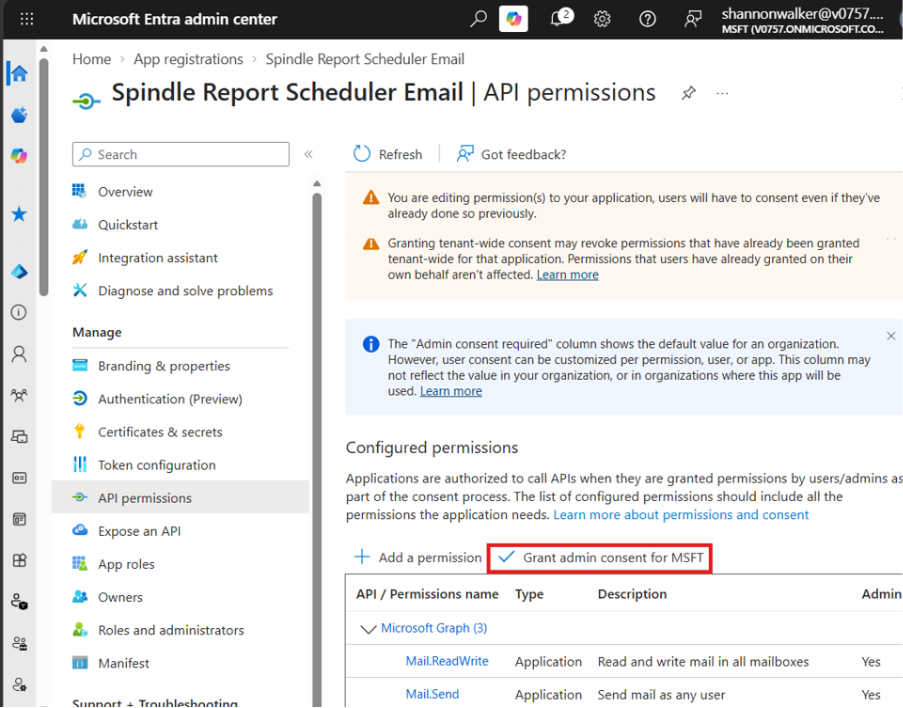
Check that the Status column shows a green tick or Granted for each permission.

Least privilege: If all report exports are smaller than approximately 3 MB, only grant Mail.Send. Add Mail.ReadWrite only when large attachments are required. Application permissions can allow tenant-wide access by default, so restrict the app to the intended sender mailbox using an Application Access Policy.
3. Create a client secret
In the app registration, open Certificates & secrets.
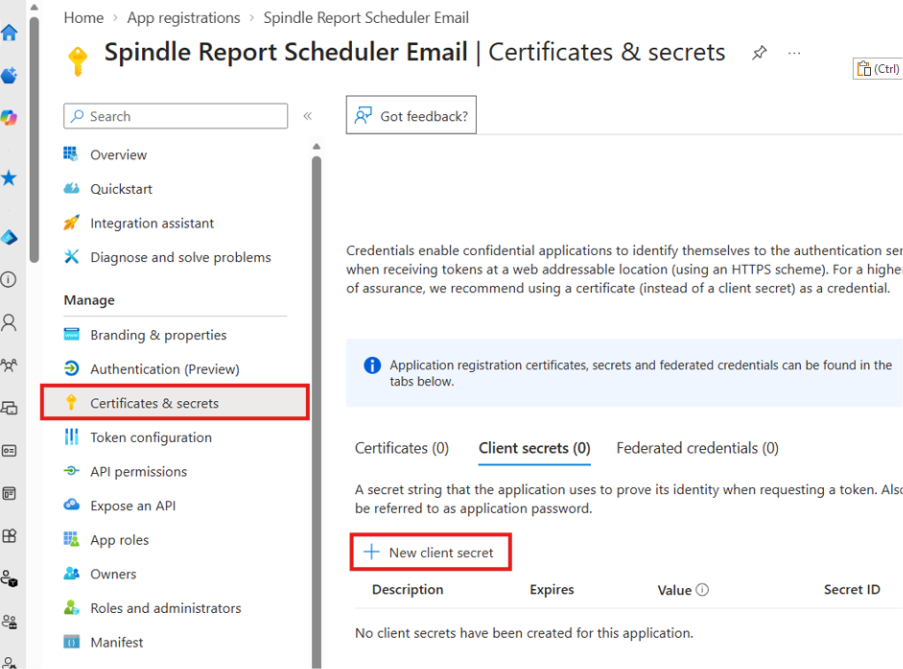
On the Client secrets tab, select New client secret.
Enter a clear Description, such as SRS secret, and choose an expiry date.
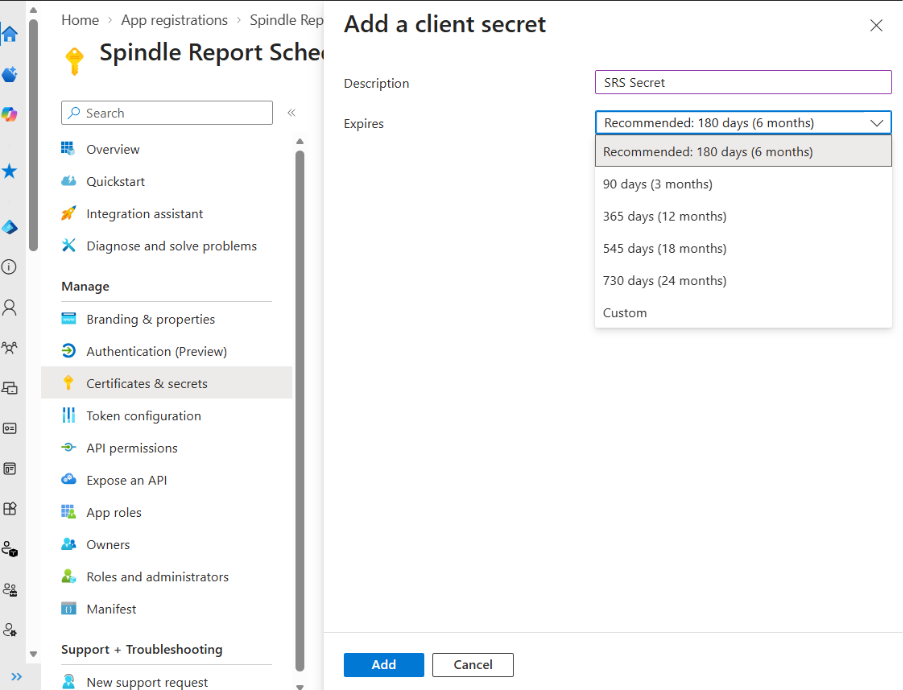
Select Add.
Immediately copy the secret Value. Do not copy the Secret ID. The value is only shown once. If you leave the page without copying it, you must create a new secret.
Make a note of the secret's Expires date. This can be entered in Spindle Report Scheduler Tools so the service can warn you before the secret expires.
4. Restrict which mailboxes the app can send from (Optional)
By default, an application with the Mail.Send application permission can send as any mailbox in the tenant. Restrict this access to the mailbox or mailboxes that will be used by Spindle Report Scheduler. This can be done using an Application Access Policy in Exchange Online.
Install-Module ExchangeOnlineManagement -Scope CurrentUser
Connect-ExchangeOnline
# Optional: create or use a mail-enabled security group, such as "SRS Senders", and add the sender mailbox to it.
New-ApplicationAccessPolicy `
-AppId "<APPLICATION-CLIENT-ID>" `
-PolicyScopeGroupId "SRS-Senders@yourcompany.com" `
-AccessRight RestrictAccess `
-Description "Restrict Spindle Report Scheduler to the reports mailbox"
Test-ApplicationAccessPolicy -AppId "<APPLICATION-CLIENT-ID>" -Identity reports@yourcompany.com
The test should return AccessCheckResult = Granted for the intended mailbox. Policy changes can take a little while to take effect across Exchange Online.
5. Configure Spindle Report Scheduler Tools
Run Spindle Report Scheduler Tools on the server.
Under Email delivery method, select Microsoft Graph API (Modern).
Complete the Microsoft Graph API section using the values copied earlier.
Field | Value |
Directory (tenant) ID | The Directory (tenant) ID copied from the application Overview page. |
Application (client) ID | The Application (client) ID copied from the application Overview page. |
Client secret | The secret Value copied when the client secret was created. |
Send as mailbox | The sending mailbox, for example reports@yourcompany.com. Leave blank to use the From address. |
Secret expiry | The secret expiry date in yyyy-MM-dd format. This is optional but enables expiry warnings. |
Complete the Sender Details, including the From address and optional Reply-to address.
Complete Administration > Report admin email address. Licence warnings are sent to this address.
Optionally enter a recipient in the To: box next to the test button. Leave it blank to use the Report admin address, then the From address.
Select Send test email in the Microsoft Graph API section. A successful test sends an email with the body Test successful.
Select Save.
| Related Product | Spindle Report Scheduler |
| Reference Number | KBA-12-02-002 |
| Document Date | 04/08/2026 |
| Original Author | Shannon Walker |
| Document Version | 1.0 |
| Last Updated | 18/08/2026 |
| Update Author | Shannon Walker |
Was this article helpful?
That’s Great!
Thank you for your feedback
Sorry! We couldn't be helpful
Thank you for your feedback
Feedback sent
We appreciate your effort and will try to fix the article