Introduction
To further increase automation within Spindle Purchase Invoice Recognition (SPIR), Microsoft Outlook can be configured to automatically forward supplier invoices received by email to the Document Portal using the Email Import feature (as detailed in article: KBA-11-02-023 - The Email Import Feature).
Outlook rules can be configured to ensure that only appropriate documents are forwarded automatically. Forwarded emails can also be moved to a dedicated subfolder, allowing them to be retained for future reference, review, or retrieval if required.
Good Candidates for Outlook forwarding rules
The following supplier email scenarios are generally well suited to automated forwarding:
- Suppliers that clearly identify document types within the email subject line, such as Invoice, Credit Note, Statement, or Delivery Note. This enables Outlook rules to accurately identify and forward the correct emails.
- Suppliers that send multiple invoices as attachments within a single email. The success of this approach depends on the structure and formatting of the email, so manual testing is recommended before implementing an automated forwarding rule.
Examples:
- Emails containing approximately 5 to 6 invoice attachments are typically processed successfully.
- Emails containing 10 or more invoice attachments may not process as reliably and should be tested thoroughly before automation is enabled.
Suppliers Unsuitable for Outlook Forwarding Rules
The following supplier email scenarios are generally not recommended for automated forwarding:
- Suppliers that include additional non-financial documents as attachments, such as:
- Despatch Notes
- Price Lists
- Terms and Conditions
- Other supporting documentation
When documents other than Invoices or Credit Notes are sent to the Document Portal through the Email Import feature, SPIR will attempt to process them as financial documents. While this will not adversely affect the operation of SPIR, each document will consume an item from the customer's document allowance.
For this reason, automated forwarding of emails containing mixed document types is generally discouraged. However, some organisations may choose to accept the additional document usage in exchange for a higher level of automation.
Process
1) Open Outlook.
2) Click the Home tab and then select Rules (located toward the centre of the ribbon).

3) Select Manage Rules & Alerts from the drop-down.
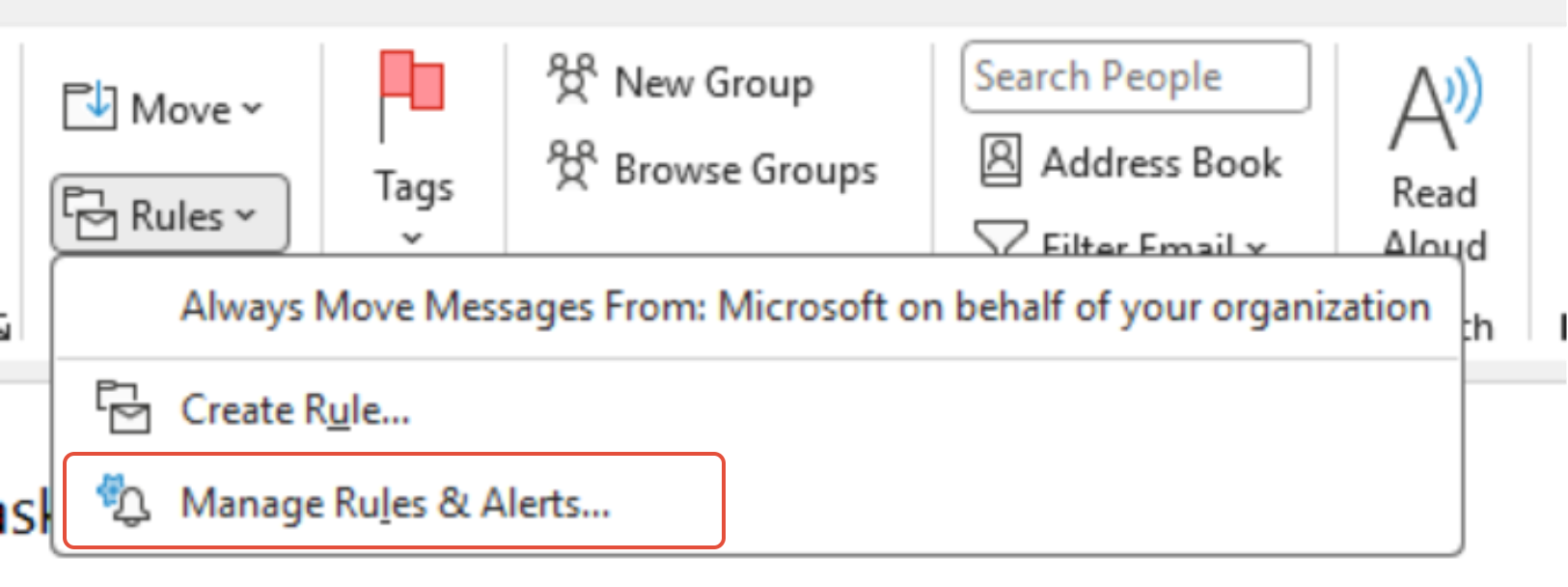
4) Select New Rule. A new window will open for the Rules Wizard.

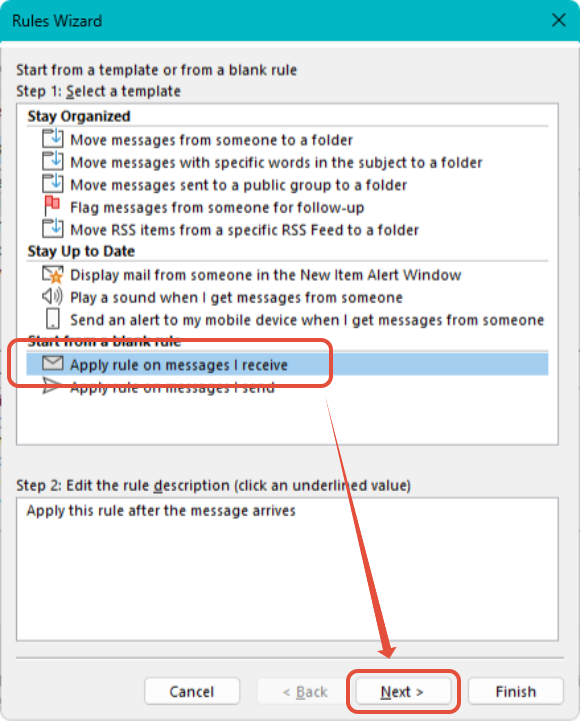
5) Select Apply rule on the message I receive located near the bottom of the list, then click Next.
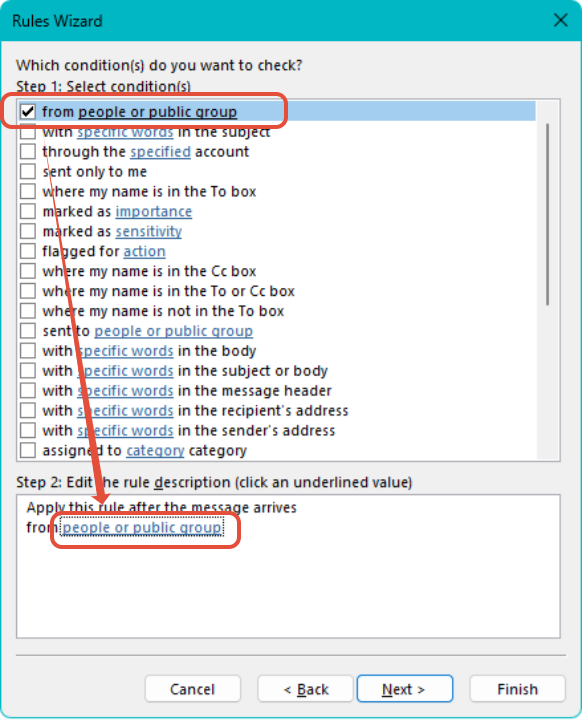
6) Tick from people or public group and then click on people or public group in the Step 2 area.
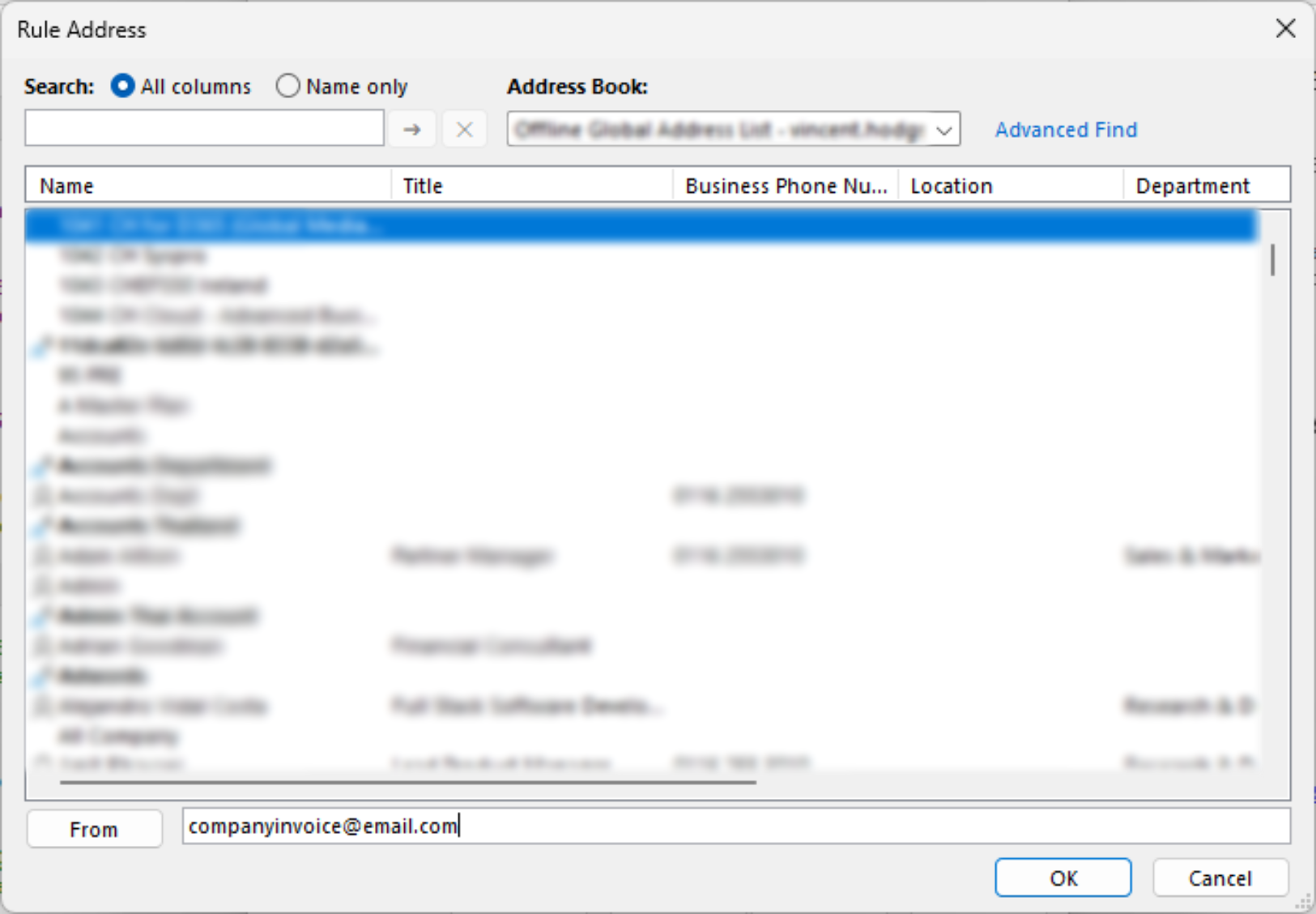
7) The Address Book window opens.
Enter the email address the invoice is sent from (i.e. the Supplier’s email address) in the From field at the bottom of the window . Then click OK.
8) The email address will be populated in the Step 2 area.
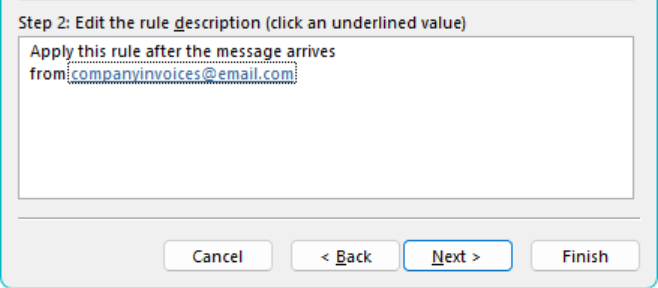
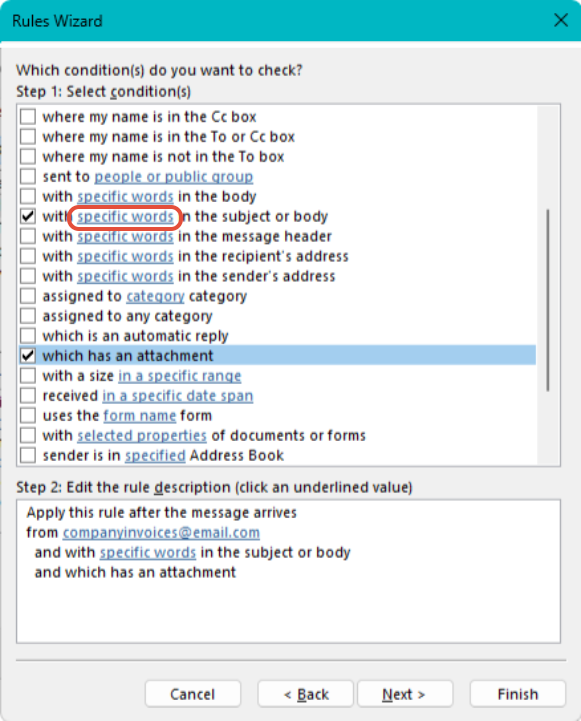
9) Remaining in the Step 1 area, further Conditions can now be selected.
Scroll down the list to find additional conditions which will help the correct email to be identified, such as:
- with specific words in the subject
- which has an attachment
The new conditions are added to the Step 2 area. A blue underscore indicates a customisation is required, click the blue underscore to edit the “specific words” text.
10) A new window opens, type the specific words required to trigger the rule, for example for specific words in the subject or body use “invoice”.
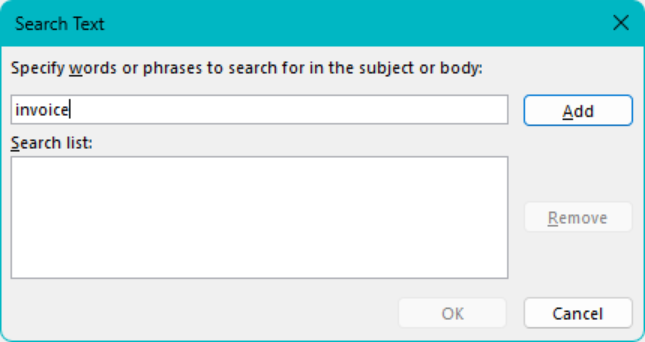
Click add, your specified word will appear in the Search list.
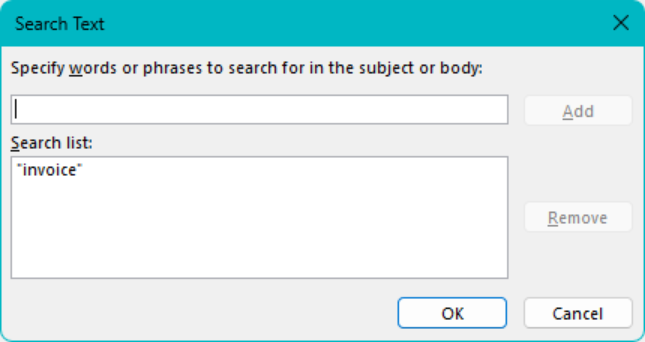
Keep adding words until all required search words are added, (you may decide “invoice” will suffice). Click OK. In the main window click Next.
11) The next step is to establish what happens to the email, multiple actions can be selected.
Select forward it to people or a public group.
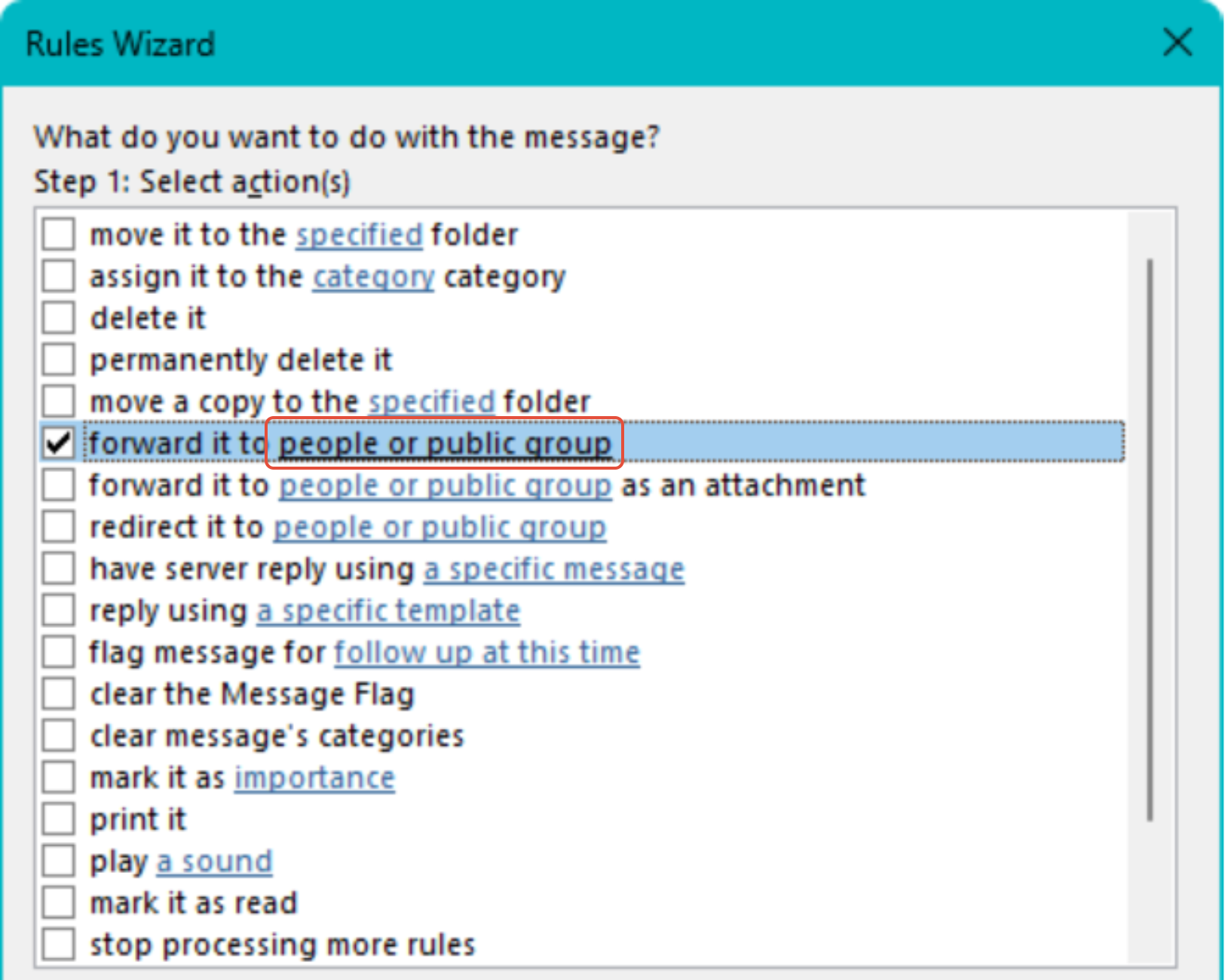
In the Step 2 area click the people or public group to amend it:
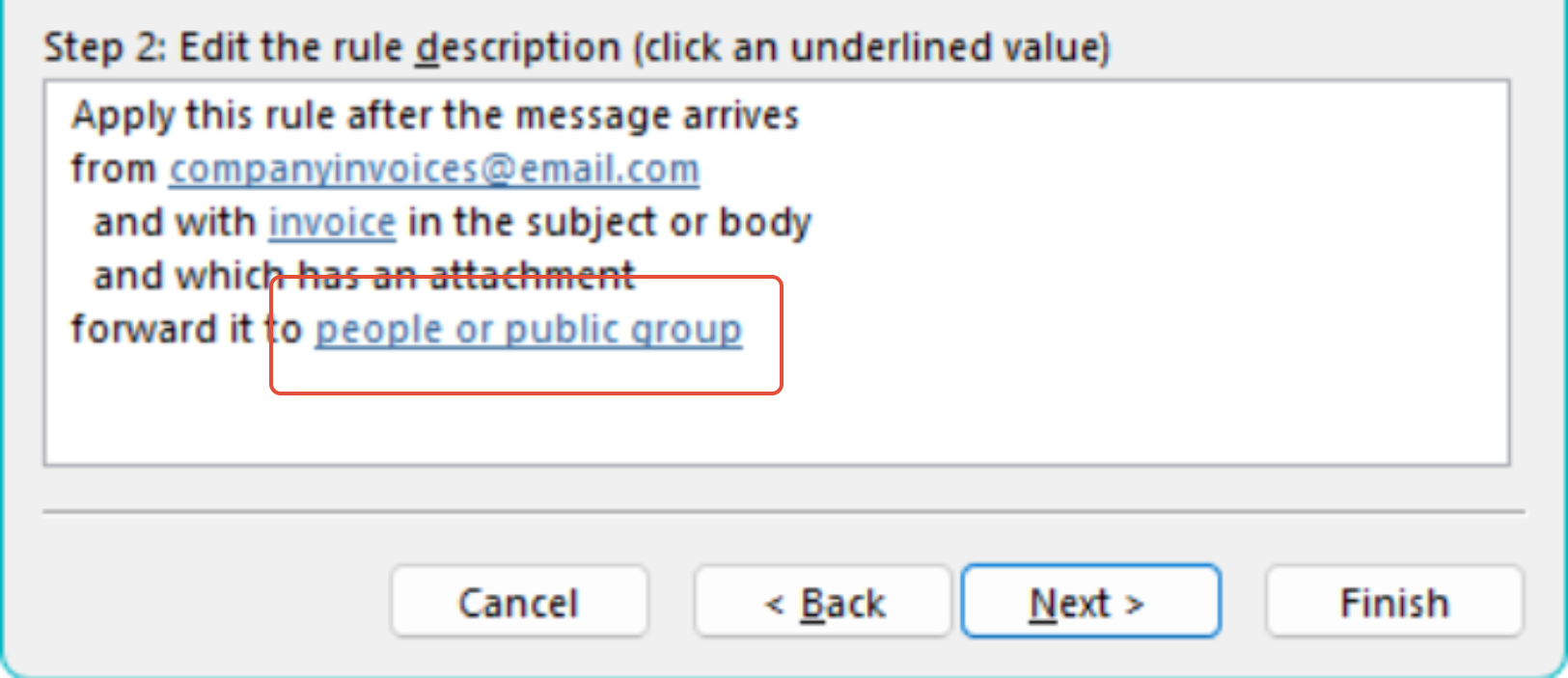
A new window opens again, add your dedicated “spindledc” email import email address in the To box at the bottom of the window:

12) Further actions can be selected, such as to move the email to a specified folder, this is recommended as it helps to identify the emails left in the inbox that still need to be manually forwarded to the Document Portal.
Tick the action move it to the specified folder.
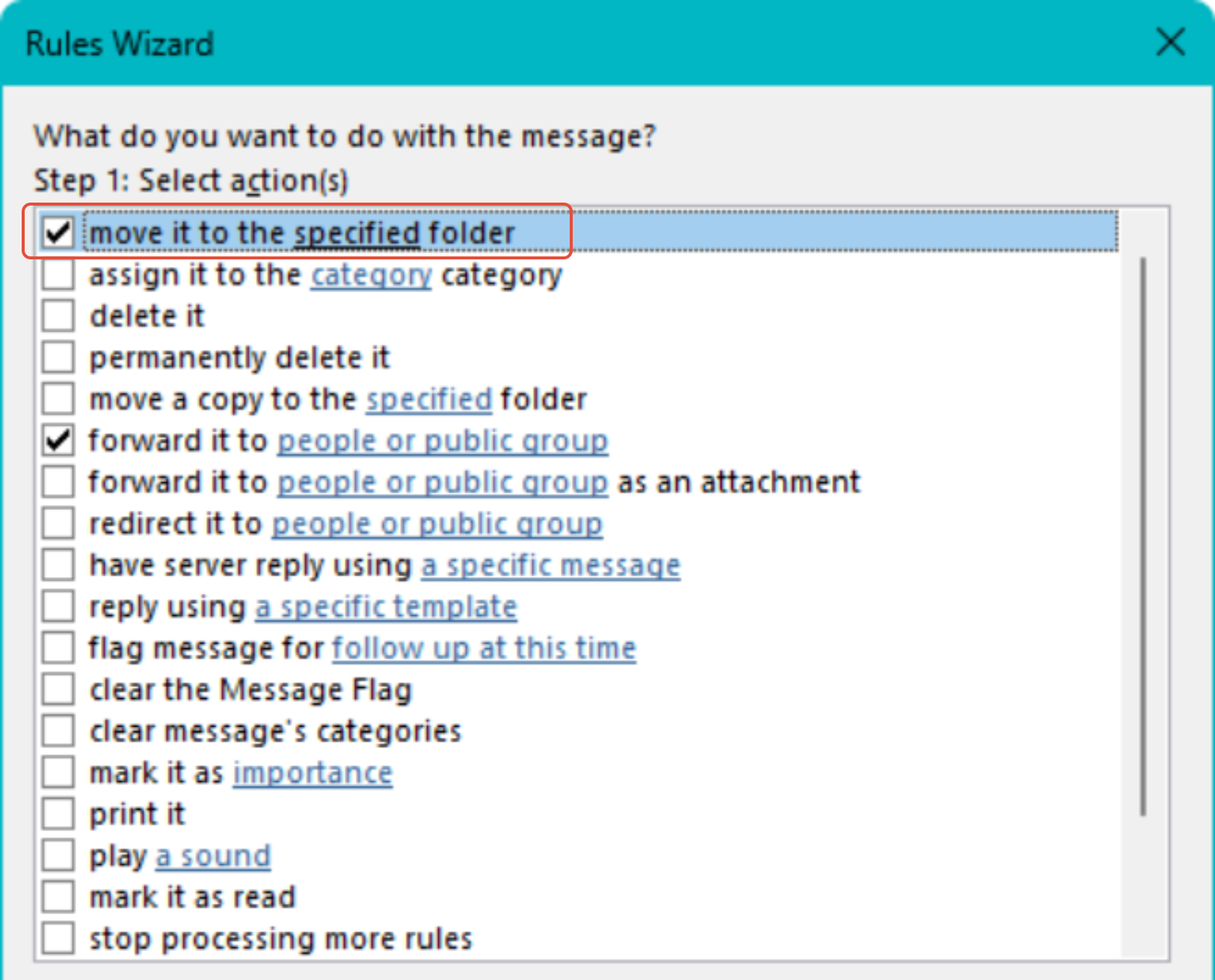
13) In the Step 2 area, click to specify the folder:
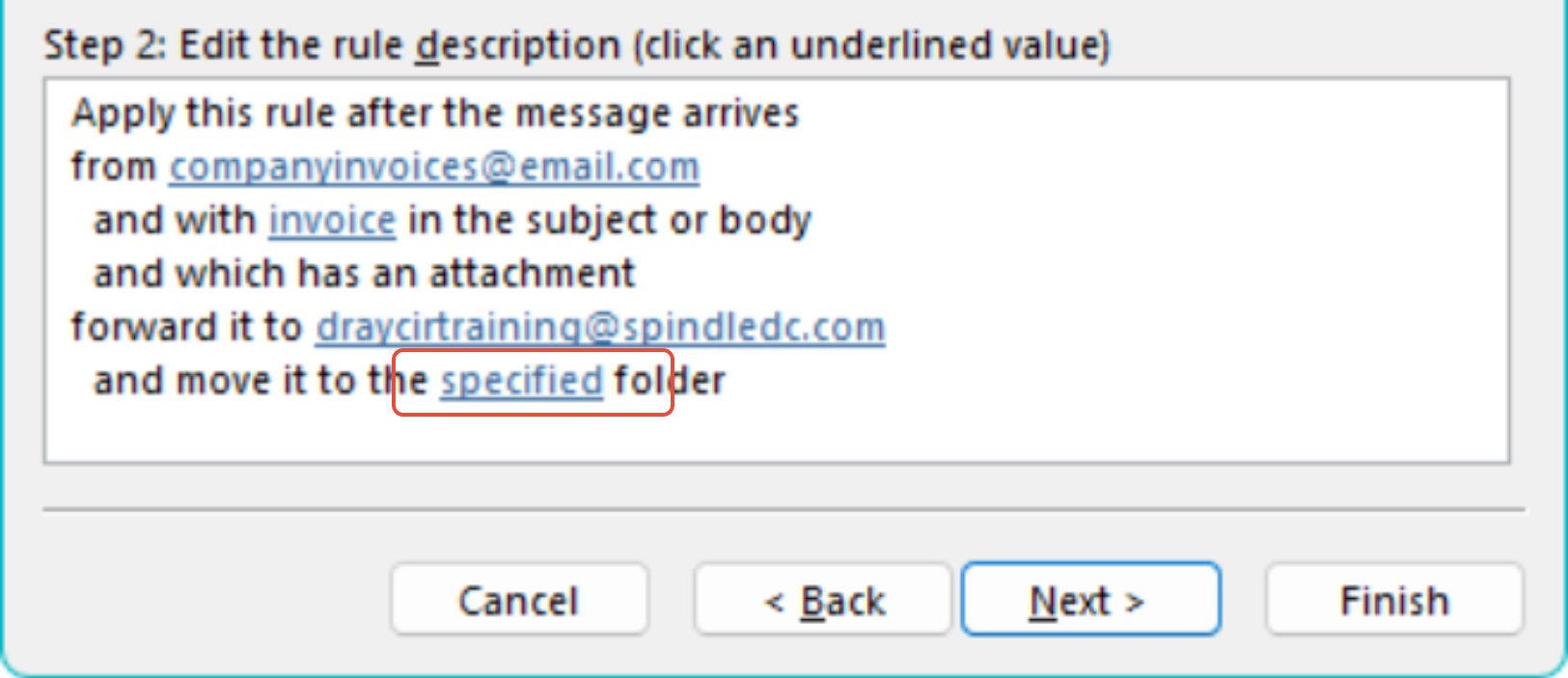
Select an existing folder the emails should be forwarded to, then click OK.
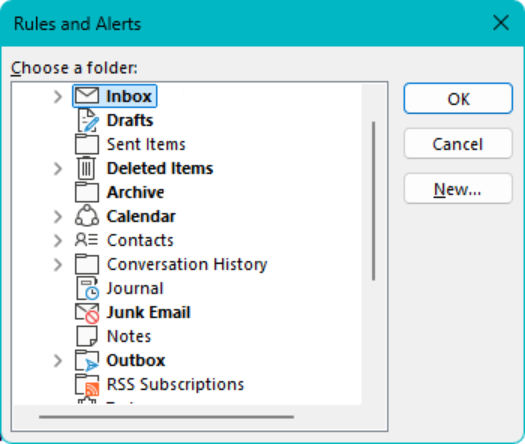
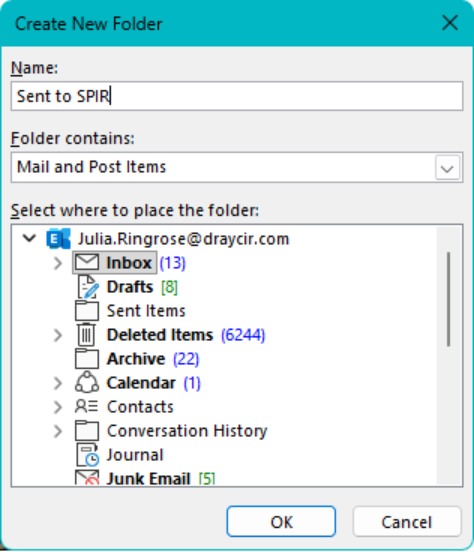
Or click New to create a new folder e.g. “Sent to Document Portal” or “Sent to SPIR”,
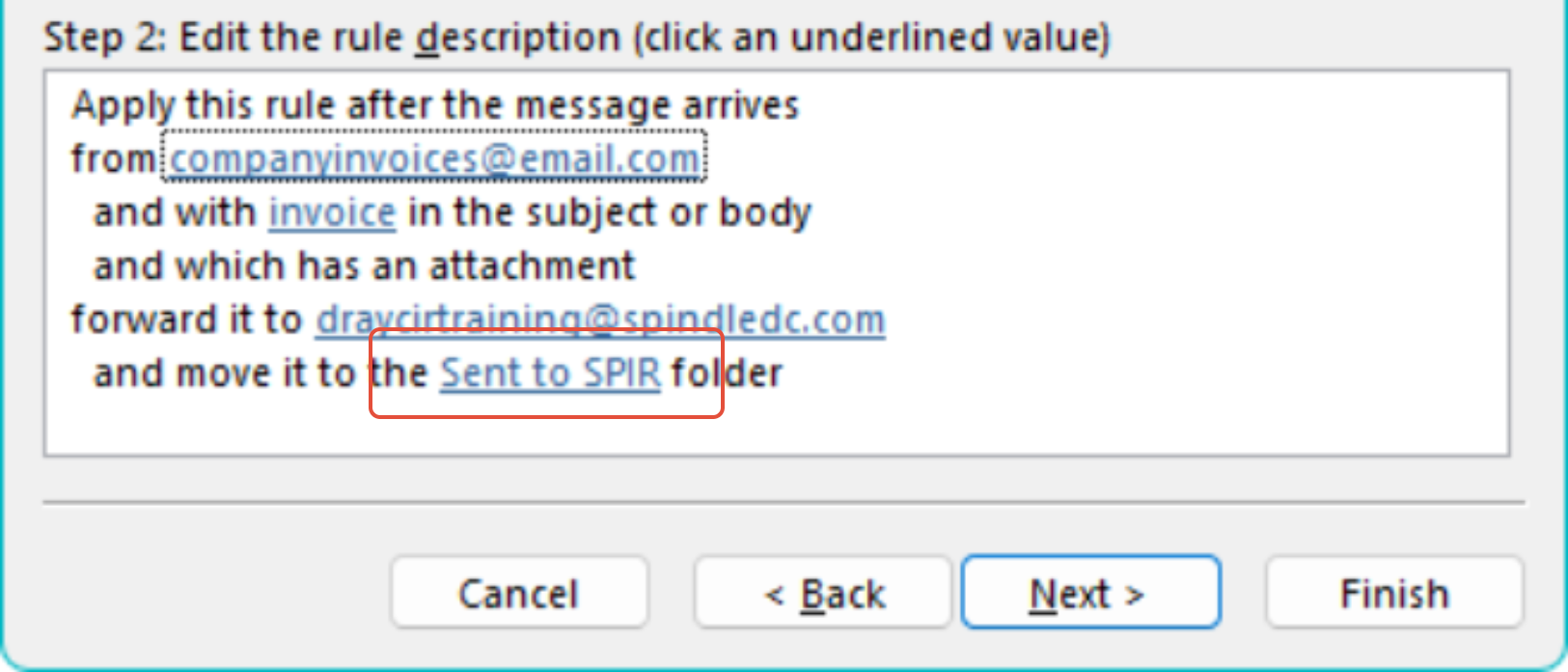
The folder name is displayed in the Step 2 area.
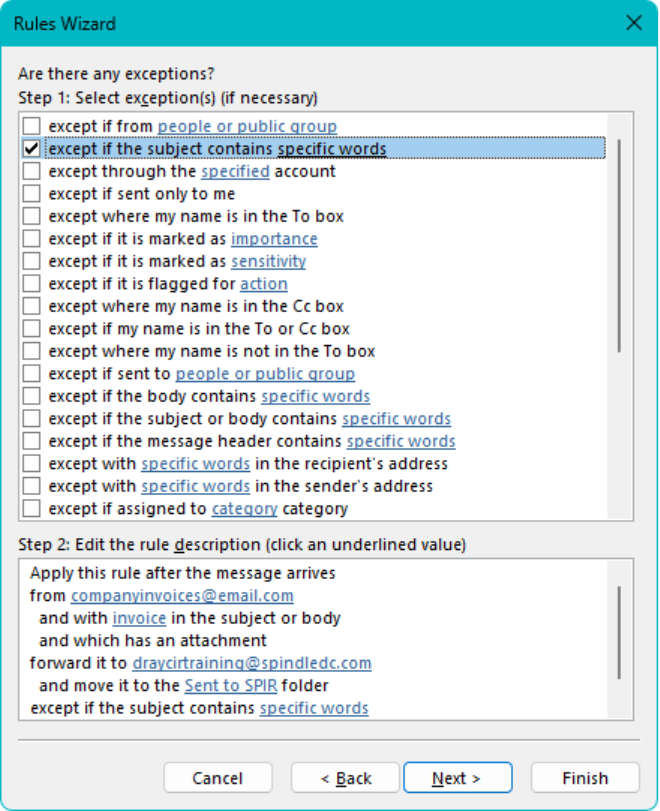
14) It is possible to determine if there are any exceptions to this rule, e.g. except if the subject contains specific words such as “statement”. Select any required exceptions to the rule and the relevant customisation as previously.
15) The final action is finish the rule setup.
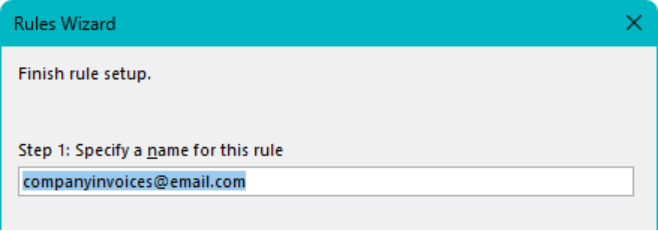
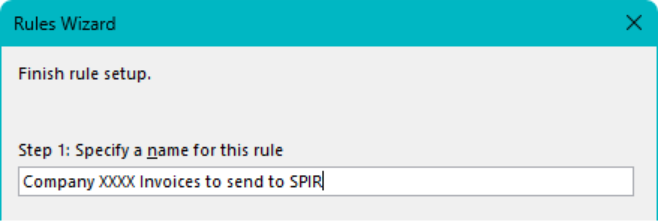
It is recommended, but not mandatory, to enter a new name for the rule in the Step 1 area. The most important factor is that the name used should make the rule easily identifiable in case any edits to the rule are needed at a later date.
OR
In Step 2 there are 3 options:
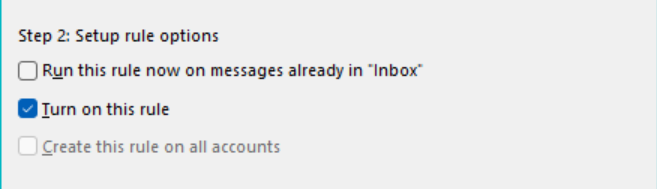
- Run this rule now on messages already in “the folder you set the rule up for” – this will apply the rule retrospectively to any existing emails, this is very useful if you have lots of invoices from a specific Supplier
- Turn on this rule – this will be applied to all newly received emails
- Create this rule on all accounts - this is only applicable if you have multiple mailboxes in Outlook, this will apply the rule to all accounts.
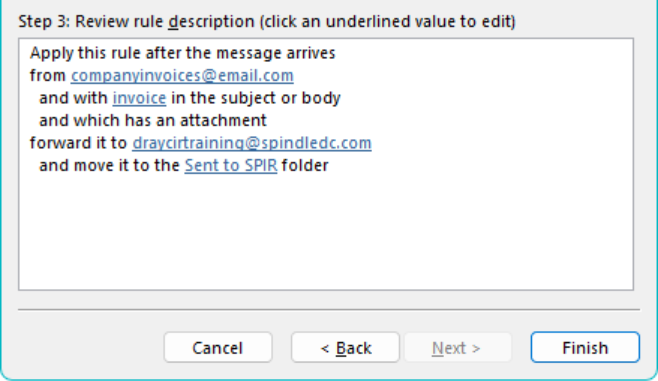
Step 3 reviews the previous Steps completed to create the rule. If the summary is correct, Click Finish.
16) The Rule can be edited at any time.
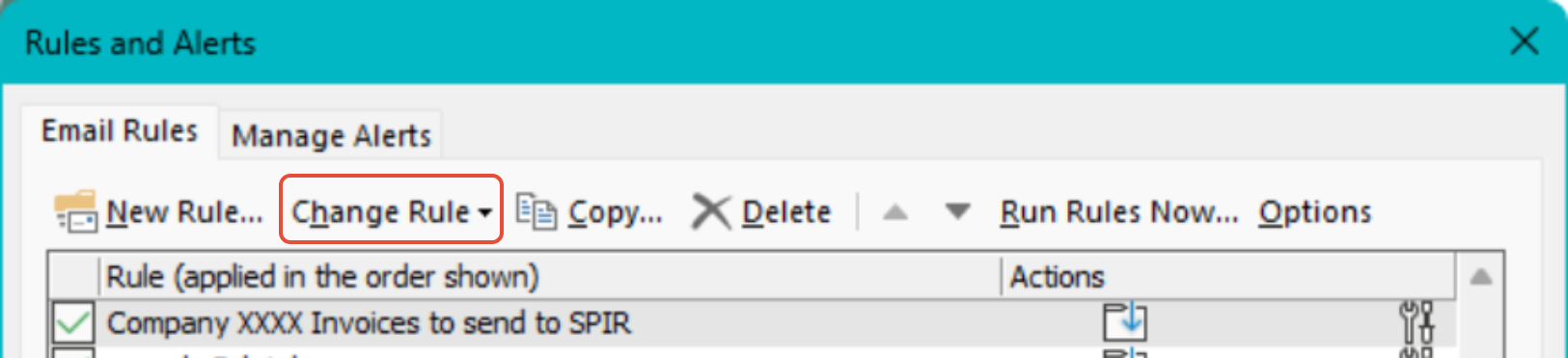
Select Rules and then Manage Rules & Alerts as at steps 1 and 2 of this article. Select the relevant Rule and click Change Rule.
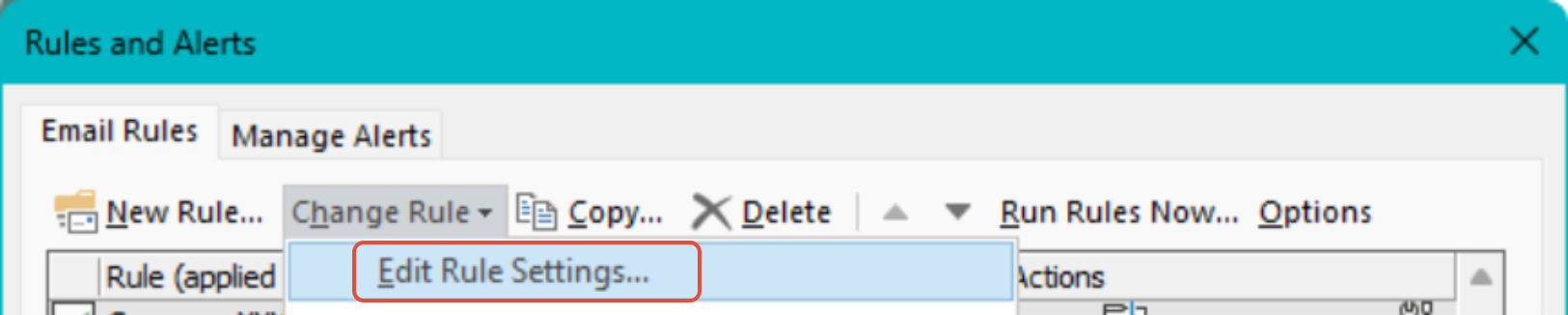
17) Click Edit Rule Settings.
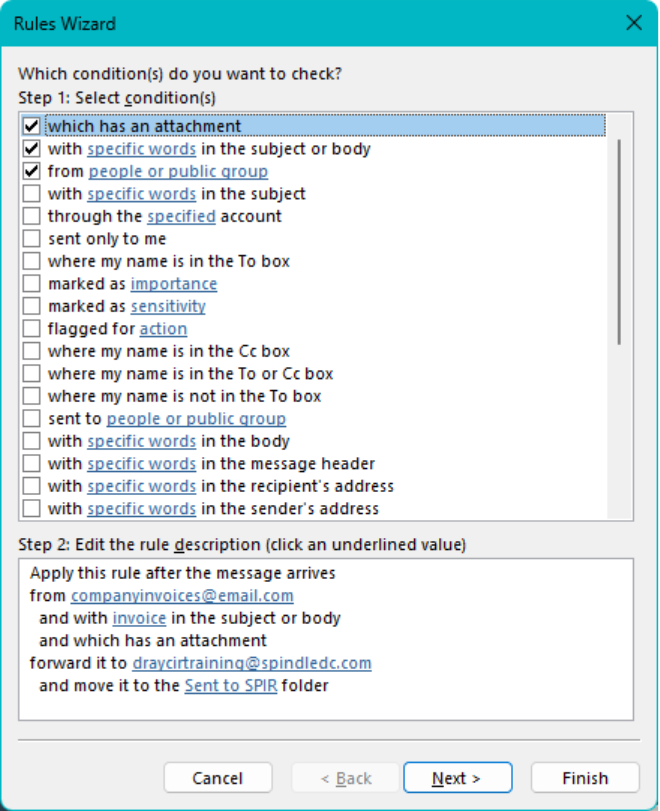
The Rule Wizard re-opens, and the required changes can be made, as per step 5 of this article onwards
Knowledge Base Article Details
| Related Product | Spindle Purchase Invoice Recognition |
| Ref Number | KBA-11-02-022 |
| Document Date | 18/08/2026 |
| Original Author | Julia Ringrose |
| Document Version | v1.0 |
| Last updated | 18/08/2026 |
| Update Author | Julia Ringrose |
Was this article helpful?
That’s Great!
Thank you for your feedback
Sorry! We couldn't be helpful
Thank you for your feedback
Feedback sent
We appreciate your effort and will try to fix the article