Introduction
Documents (purchase invoices and credit notes) can be passed to Spindle Purchase Invoice Recognition either by manually uploading them through the Document Portal application or else by emailing them to a designated email address.
Applies to
Spindle Purchase Invoice Recognition
Description
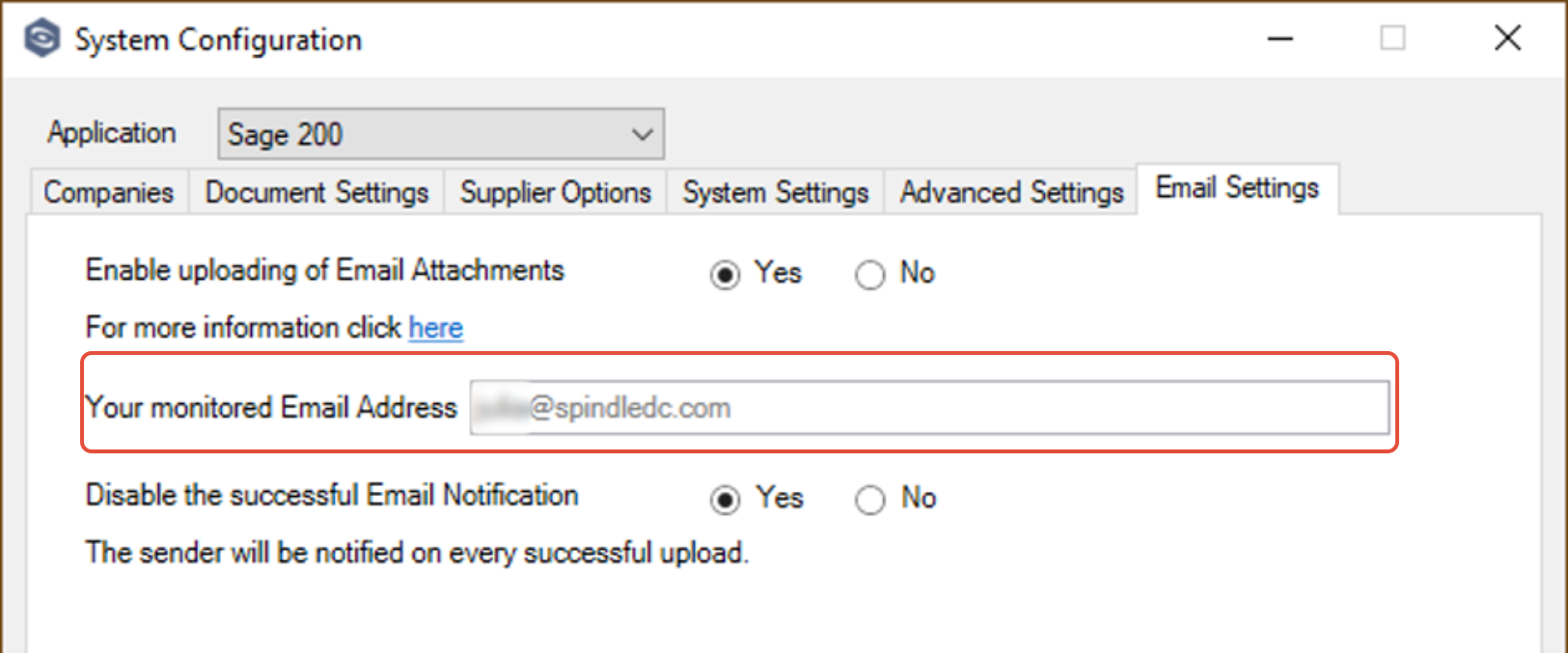
As part of initially provisioning your Spindle Purchase Invoice Recognition, Draycir will setup a specific email address for end users to send their invoices to by forwarding a received Supplier email to the email address. The email address will be in the form XXXX@spindledc.com.
The specific email is visible in Server Administration>Recognition>System Configuration>Email Settings:
Notes
- All attached files (PDF or TIFF) within the email will automatically be sent to the Document Portal.
- The maximum file size limit is dependent on email client (for example, MS Outlook has a default limit of 35MB).
- Sending documents other than Invoices or Credit Notes (credit notes are supported in v11 and later, see KBA-11-02-024 - Using Credit Notes with Spindle Purchase Invoice Recognition) will deduct from the purchased document count.
- Users may want to automatically forward emails from their mailbox to SPIR.
- If using MS Outlook, a Rule can be setup to e.g. auto-forward any emails that comes into the Finance mailbox to be sent to SPIR. Alternatively specific supplier email addresses can be specified within the MS Outlook Rule. See this article for details: KBA-11-02-022 - Auto-forwarding rules to send Invoices to SPIR
- If the file(s) within the email are successfully uploaded the Sender will be notified by email.
- ·The Sender will receive a success email notification for every email they send, for example if they send four emails, they will receive four success email notifications.
- Draycir can turn the success notifications OFF as we appreciate this may clog up Users’ mailboxes, however it may be beneficial at the start to keep this enabled.
- If there are any problems uploading the document, the sender will be notified by email with a brief explanation. For example, if no file attached to the email, if the file is not in the supported format (PDF or TIFF format only supported) or if the file is corrupt.
Notfication results
Scenario | Email Notification |
Email processed and sent to SPIR successfully | Your attachment has been sent for automated processing. |
Failure from SPIR | Your attachments could not be sent for automated processing. Please check that the attachments are valid PDF or TIFF files and try again. |
No tenant registered for email address | The email address does not exist. Please re-check the email address. If the problem persists, please contact your administrator. |
No applicable attachments | Your email did not contain any attachments that can be automatically processed. Please attach invoices as PDF or TIFF files. |
PDF is corrupt? | Your attachments could not be sent for automated processing. Please check that the attachments are valid PDF or TIFF files and try again. |
If the attachment is not a PDF of TIFF file | Your attachments could not be sent for automated processing. Please check that the attachments are valid PDF or TIFF files and try again. |
If multiple documents are imported, and some pass and some fail | The following attachments could not be sent for automated processing: <List of Filenames> The following attachments were successfully sent for automated processing: <List of Filenames> Please check that the failed attachments are valid PDF or TIFF files and try again. |
Knowledge Base Article Details
| Related Product | Spindle Purchase Invoice Recognition |
| Ref Number | KBA-11-02-023 |
| Document Date | 18/08/2026 |
| Original Author | Julia Ringrose |
| Document Version | v1.0 |
| Last updated | 18/08/2026 |
| Update Author | Julia Ringrose |
Was this article helpful?
That’s Great!
Thank you for your feedback
Sorry! We couldn't be helpful
Thank you for your feedback
Feedback sent
We appreciate your effort and will try to fix the article