Introduction
This article will discuss how to integrate Spindle Document Capture (SDC) with Excel Data Bridge (EDB).
Note: This is only configurable for the Purchase Ledger (PL) invoice sheet.
The process flow to handle this would be:
- Create PL Invoice via EDB
- Barcode is printed to a label printer
- End user sticks the printed barcode onto the appropriate physical document
- End user scans the barcodes documents into the SDC Document Portal
- SDC will read the barcodes and archive the documents against the transactions created by EDB
Refer to the step-by-step guide below that further details how to set up this.
TABLE OF CONTENTS
Step 1: Server Configuration
The customer's administrator will need to configure the EDB maintenance site to allow connection to SDC. This is done by adding a record within the "Web Service Maintenance" page of the site.
Note: To access the Maint site, it'd be <server name>/ExcelDataBridgeMaint, e.g., http://win11-vm/ExcelDataBridgeMaint
There are two fields on this page that must be populated (Account ID field can be ignored).
1) The name must be "SDCBarcode".
2) The URL is the URL that SDC listens on. The standard port is 34251, so for example, the URL could be "localhost:34251".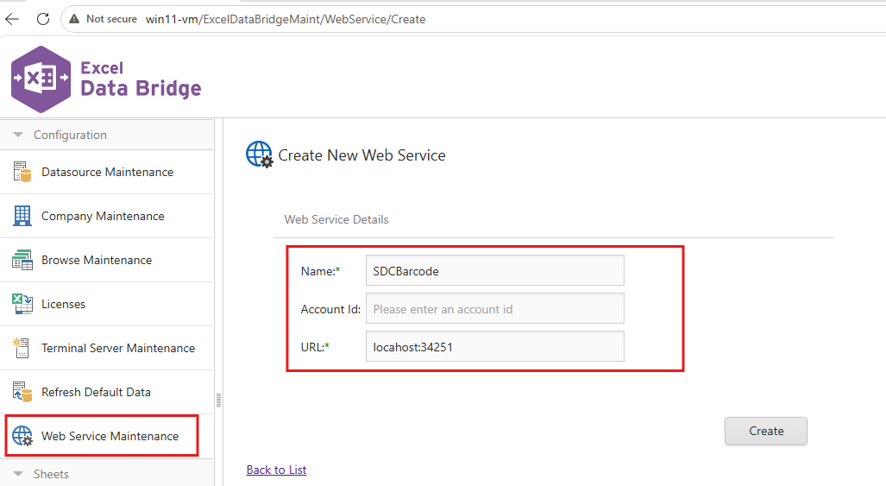
The administrator then needs to ensure that the user(s) wishing to process PL invoice records has client-side processing configured.
This can be enabled by navigating to "User Maintenance" on the left-hand side panel, "Edit", tick "Client Processing":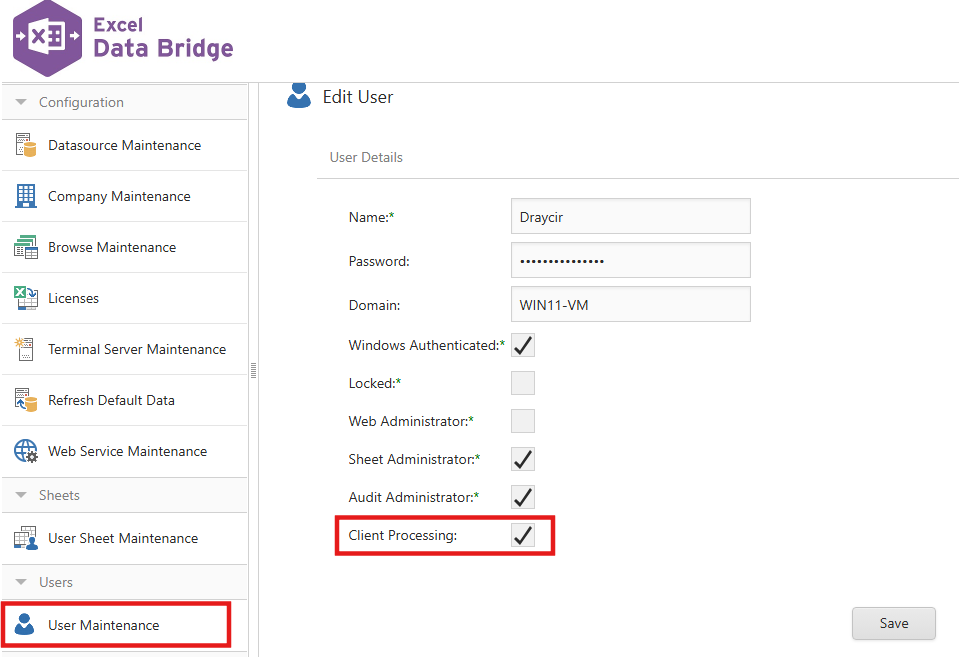
This will be all for server configuration.
Step 2: Client Configuration
Open the PL Invoice sheet. There are two different approaches depending if barcodes are required on all or certain orders.
1) If all PL Invoices are to have a barcode associated, then a default value can be applied. In the information section of the designer, there is a "PrintBarcode" option. Within this, set the "DefaultValue" entry to True: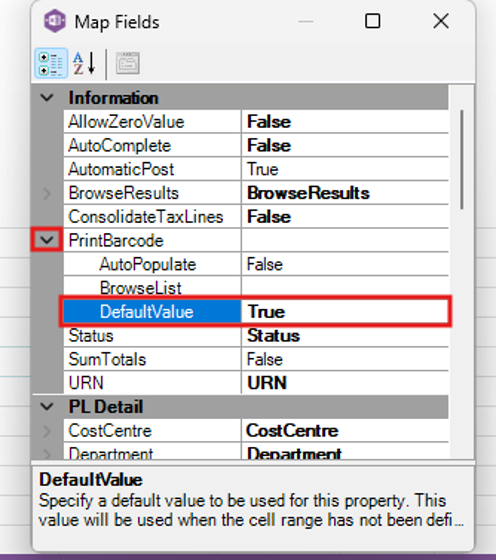
2) Alternatively, if barcodes are only required on certain orders, this property can be added to the sheet as a column and will work as any other field where the cell value will control behaviour: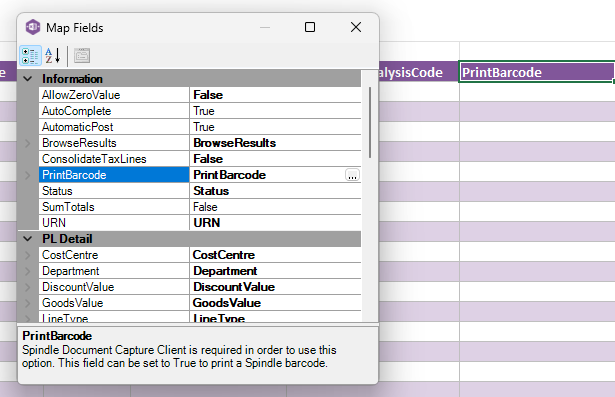
This will be all for client configuration.
Step 3: Process with Debug
You can now run the sheet. On the first run, it is recommended to turn on client debugging to set the printer for SDC to use. This is achieved by heading to the EDB ribbon -> Advanced -> Enable Debug: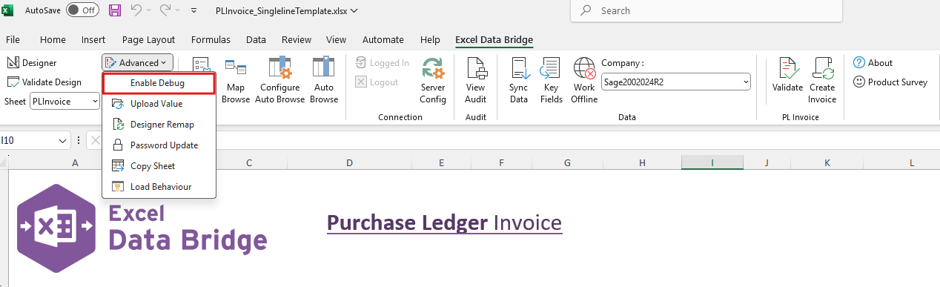
With the debug on, process one record.
A popup will appearing showing the values read from the sheet (if you have multiple records processing, then we suggest pressing "cancel" at this stage"). This is the usual function of the debug option, just click continue. Then, when the invoice is created and the print API is called, it will call the API version that loads the UI to allow you to configure the printer.
You should see now the PL Invoice has processed successfully and a barcode has been printed. Feel free to turn off debugging, which means you will not be prompted to configure SDC printers in the future, and process as many records as you wish.
If an issue has occurred, please see the next section regarding troubleshooting a common scenario.
Additional Step: Troubleshooting
If there is an SDC issue that presents itself within EDB, likelihood is that a step has been missed within the configuration, or an event has occurred that requires reconfiguration such as a server move.
Below is one example of an error if the URL within the Server Configuration step contains the wrong server.

Knowledgebase Article Details
| Related Product | Excel Data Bridge |
| Ref Number | KBA-13-02-005 |
| Document Date | 14/10/2026 |
| Original Author | Navneet Dhami |
| Document Version | v1.0 |
| Last updated | 14/10/2026 |
| Update Author | Navneet Dhami |
Was this article helpful?
That’s Great!
Thank you for your feedback
Sorry! We couldn't be helpful
Thank you for your feedback
Feedback sent
We appreciate your effort and will try to fix the article